
1. Overview
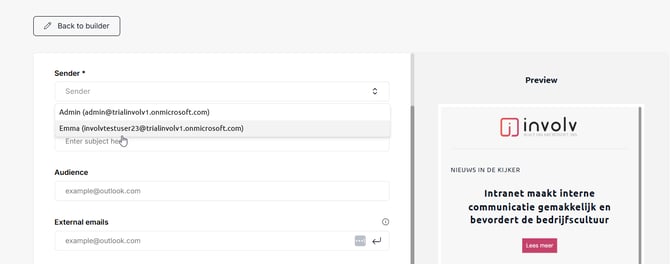
Newsletters in Involv intranet can be sent from several different addresses — for example a general communications mailbox, an HR alias, or a specific colleague like a CEO. Choosing the right sender increases recognition and engagement, because employees are more likely to open a message that comes from a person or department they trust.
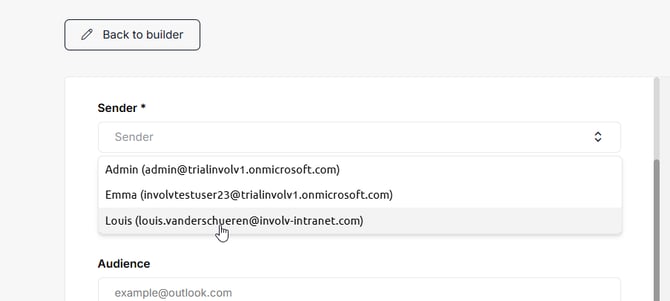
The list of available senders is managed inside the Involv Newsletter web part configuration. Once a sender is added there, content creators can select it from the Sender dropdown when composing or scheduling a newsletter.
This article is for content creators and intranet administrators who edit the Newsletter page and need to add a sender, change the order in which senders appear, or remove a sender that is no longer in use.
2. What you'll learn
- How to open the sender configuration on the Newsletter page
- How to add a new sender with a free-text name or a SharePoint user
- Where to set the default sender used when no specific one is selected
- How to remove a sender that is no longer in use
- When you need Send on behalf permissions on a mailbox to use it as a sender
- How to troubleshoot a sender address that does not appear in the Send panel
3. Open the sender configuration on the Newsletter page
The list of senders lives inside the configuration of the Involv Newsletter web part. To reach it, go to the Newsletter page in your intranet and switch the page to edit mode using the Edit button.
With the page in edit mode, click on the Involv Newsletter web part to select it, then open its property pane. In the property pane you will see a Senders section with a Manage senders button. Click Manage senders to open the configuration panel.
4. Add a new sender
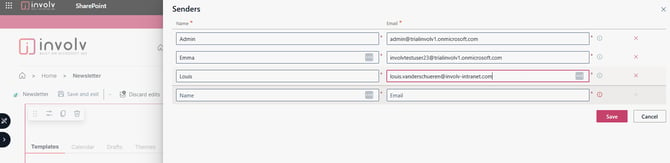
The Senders panel shows every address currently available to content creators, with a Name column on the left and an Email column on the right. Both fields are required.
To add a new sender, scroll to the empty row at the bottom of the list. There are two ways to fill in the Name field:
- Type any display name as free text — for example Admin, HR Team, or Newsletter. Recipients will see exactly this name in their inbox.
- Click the … button inside the Name field to open the person picker and select a SharePoint user. The display name is then taken from their Microsoft 365 profile.
In the Email field, enter the mailbox address that the newsletter should be sent from. This must be a real mailbox in your Microsoft 365 tenant — see section 5 about the permissions required to use it.
Click Save to add the sender to the list. The new address immediately becomes available in the Sender dropdown the next time someone composes a newsletter.
5. Permissions: Send on behalf
To send a newsletter from a specific mailbox, the account composing the newsletter must have at least Send on behalf permissions on that mailbox in Microsoft 365. Without this permission, the address can be added to the sender list but the newsletter will fail when sent.
Send on behalf permissions are managed in Microsoft 365 by an Exchange administrator, not inside Involv intranet. If you want to send newsletters from a shared mailbox or from a colleague's address, ask your IT team to grant your account Send on behalf on that mailbox first. Once permissions are in place, the address can be added in the Senders panel as described above.
There is no separate domain verification step inside Involv intranet sending relies entirely on the standard Microsoft 365 permissions on the chosen mailbox.
6. Set the default sender
There is no explicit default sender. It works with a dropdown. If no sender is made within the newsletter component. The default notification email will be used. This is configered in the admin panel. If this email is also empty then no newsletters or notifications can be send.
7. Remove a sender
To remove a sender, click the red X icon at the end of its row, then click Save to confirm. The address is removed from the dropdown immediately and can no longer be selected for new newsletters.
Removing a sender does not affect newsletters that have already been sent. For drafts or scheduled newsletters that were configured to use the removed sender, the content creator needs to reopen the draft and select a different sender before sending.
8. Troubleshoot a sender that does not appear
If a content creator reports that an expected sender does not appear in the Sender dropdown of the Send panel, check the following in order:
- The address has been added in the Senders panel and the panel was saved
- The user composing the newsletter has Send on behalf permissions on the mailbox in Microsoft 365 (see section 5)
- The Newsletter page was saved and republished after the senders were updated
- The newsletter draft was reopened — senders added after a draft was started may not appear until the draft is reopened
- The browser cache is cleared with a hard refresh of the Newsletter page
If the address still does not appear after these checks, contact Involv support with the user account, the mailbox address, and a screenshot of the Senders configuration.
9. Result
You now have a managed list of sender addresses that content creators can choose from when sending a newsletter. The default sender is the one at the top of the list, and removals or reorderings take effect immediately after saving. Combined with the right Send on behalf permissions in Microsoft 365, this lets newsletters be sent from the most relevant person or department for each message.
For related topics, see How to create a newsletter
Involv version 5.3