
1. Overview
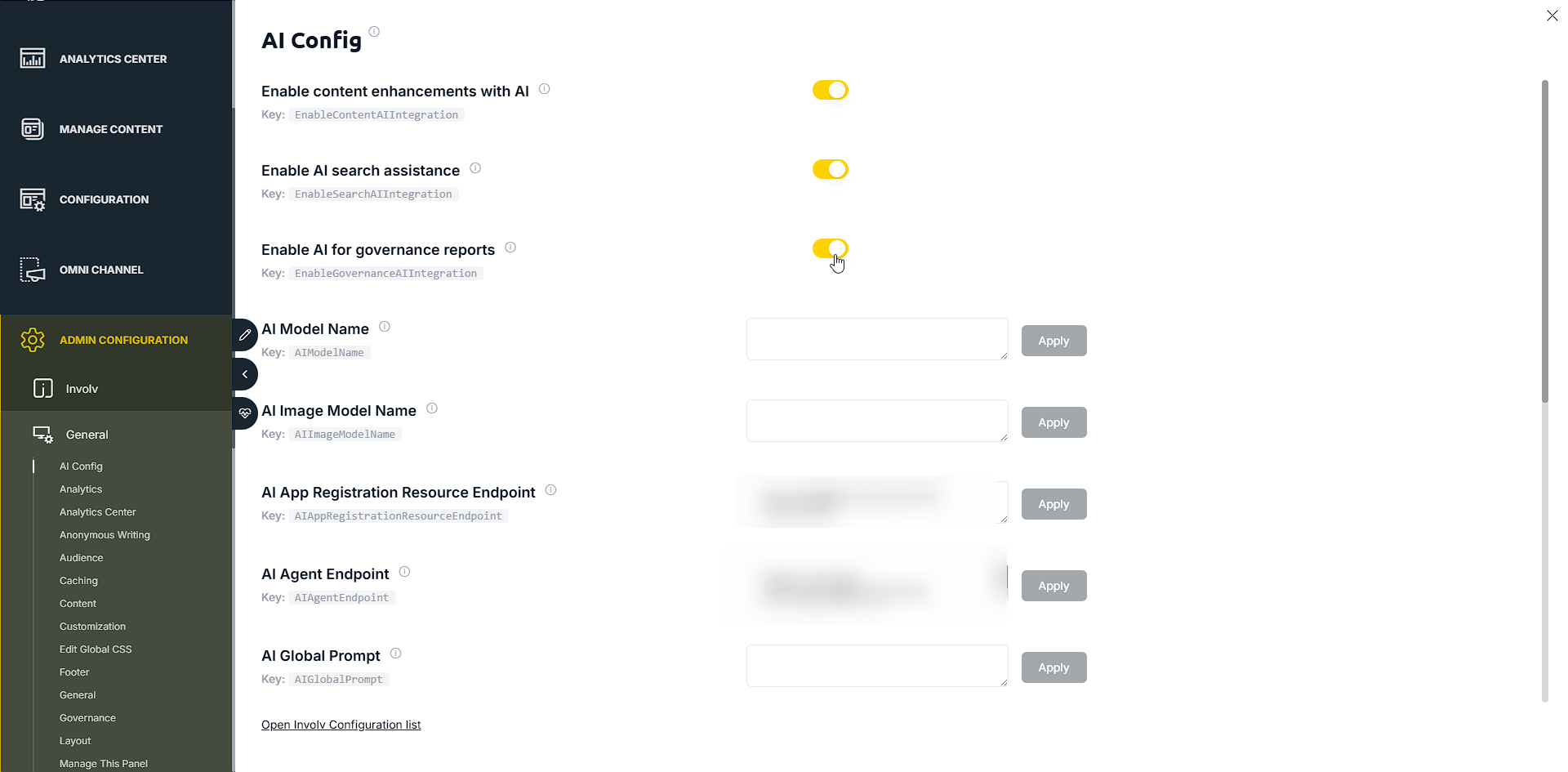
Involv intranet 5.4 brings all AI settings together in a single AI Config panel in Involv Manager. From here, an administrator decides which AI capabilities are active and how they behave.
AI is applied in three areas — page content, search, and governance — and each has its own on/off toggle. Below the toggles, additional settings let you choose the AI model, connect the AI service endpoints, and tailor the prompts and redirect behaviour that drive AI Search.
Use this panel when you first set up AI on your intranet, when you want to switch a capability on or off, or when you want to refine how AI interprets search queries and where it sends users.
2. What you'll learn
- Where to find the AI Config panel in Involv Manager
- How to enable AI for content, search, and governance
- How to set the AI model and service endpoints
- How to use prompts and redirect URLs to steer AI Search
- When to use each AI capability
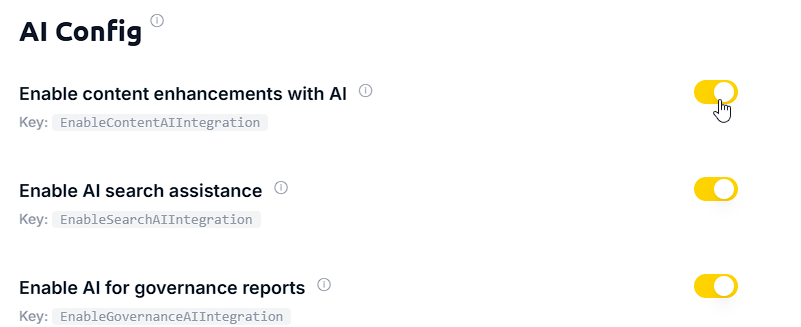
- Enable content enhancements with AI — AI assistance when creating page content. *(setting key: EnableContentAIIntegration)*
- Enable AI search assistance — AI Search relevance, query understanding, and redirects. *(setting key: EnableSearchAIIntegration)*
- Enable AI for governance reports — Smart Content Intelligence quality scoring and ownership tracking. *(setting key: EnableGovernanceAIIntegration)*
- AI Model Name — the language model used (for example, gpt-5-mini). *(AIModelName)*
- AI Image Model Name — the image model, if used. *(AIImageModelName)*
- AI App Registration Resource Endpoint — the app registration resource that authorises the AI service. *(AIAppRegistrationResourceEndpoint)*
- AI Agent Endpoint — the endpoint of the Involv AI agent service. *(AIAgentEndpoint)*
- AI Global Prompt *(AIGlobalPrompt)*
- AI Navigation People Search Prompt *(AINavigationPeopleSearchPrompt)*
- AI Navigation General Search Prompt *(AINavigationGeneralSearchPrompt)*
- AI Navigation People Summary Prompt *(AINavigationPeopleSummaryPrompt)*
- AI Navigation General Summary Prompt *(AINavigationGeneralSummaryPrompt)*
- AI Navigation People Redirect URL — where to send a user when AI detects they are looking for a person (for example, your Who is Who page instead of a generic landing page). *(AINavigationPeopleRedirectURL)*
- AI Navigation Document Redirect URL — destination for document-oriented queries. *(AINavigationDocumentRedirectURL)*
- AI Navigation Page Redirect URL — destination for page-oriented queries. *(AINavigationPageRedirectURL)*
- Title — the question the user sees, for example *"Who can help me with a broken laptop?"*
- InvolvSearchType — which result group the suggestion belongs to (for example people). This controls where the suggestion appears in the results; a people suggestion shows under the People group in search.
- Description — a short supporting line shown beneath the title, for example *"I am looking for IT help"*.
3. Open the AI Config panel
Open Involv Manager and go to Admin Configuration > Involv > General > AI Config in the left-hand menu. This panel holds every AI-related setting for your intranet.
4. Enable AI for content, search, and governance
At the top of the panel are three toggles, one for each area where Involv intranet uses AI:
Switch on only the capabilities you want to use. A toggle takes effect immediately — the page reloads and the setting stays active. These admin toggles enable the AI capability across the intranet. They are separate from the user-facing Enable AI Assistant toggle that end users see in features such as search; that user choice persists across the intranet for that user (see the AI Search article).
5. Set the AI model and service endpoints
Below the toggles, configure the AI service. Each field has its own Apply button, so you save settings individually:
For any advise to setup AI look here
6. Steer AI Search with prompts and redirects
The remaining fields control how AI Search interprets a query and where it sends the user. Prompts shape how the AI reasons about a search; redirect URLs send the user to the most relevant destination once the AI has understood their intent.
Prompts:
Redirect URLs:
This is how AI Search uses query context: it works out whether the user is after a person, a document, or a page, and then routes them to the right destination.
7. Result
Once configured, the AI capabilities you enabled are active across your intranet, AI Search routes users to the right destinations based on intent, your predefined search suggestions reflect your organisation's real questions, and disabled capabilities stay off. All of this is now managed from one place in Involv Manager.
For related topics, see How to use the Involv AI search, How to use Smart Content Intelligence, and How do you enable AI in Involv intranet?.
Involv version 5.4