
1. Overview
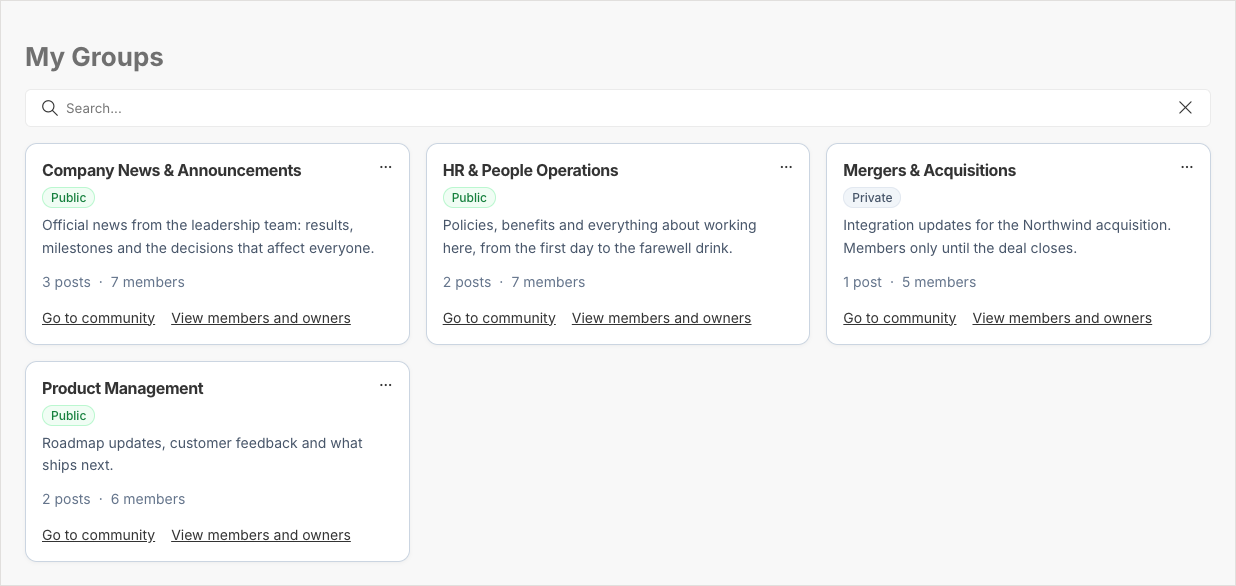
The Involv Social Feed My Groups web part shows the communities the current user is a member of. Where the Social Feed Manager is about finding communities to join, My Groups is about the communities someone already belongs to, which makes it a good fit for a homepage or a personal start page.
The web part needs no list of communities: it finds every promoted community automatically and shows only the ones the user is a member of.
2. What you'll learn
- How to add the My Groups web part to a page
- How to choose between a grid and a list layout
- How to show or hide the search box, counters and buttons
- How users leave a community from the overview
- Why a new community does not appear immediately
3. Add and configure the web part
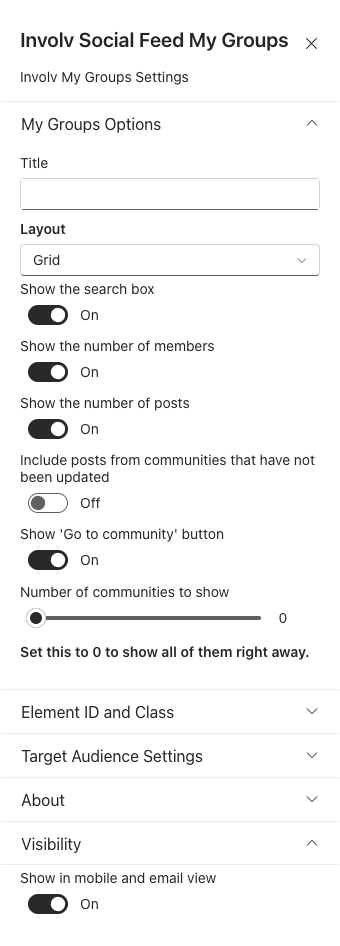
Edit the page, add Involv Social Feed My Groups and open the property pane. Title is shown above the overview. Layout shows the communities side by side (Grid) or under each other (List).
Show the search box adds a filter above the overview; it is on by default and mostly useful when people are a member of many communities. Number of communities to show limits how many communities are shown before the rest is folded away behind Show all. The default, 0, shows all of them.
Show the number of members and Show the number of posts add counters to every card. Turning a counter off also makes the web part faster, because each counter is a request per community. Show 'Go to community' button adds the link into the community to every card. It is off for a new web part, the same as on the Social Feed Manager and the Community Highlight; when it is off, the name of a community is plain text. A web part placed before Involv intranet 5.5 keeps the setting it was placed with.
Include posts from communities that have not been updated only matters while your tenant still has communities set up with an earlier version; see How do you upgrade and troubleshoot Social Feed communities in Involv intranet?.
4. What users see
Every community is a card with its name, a Public or Private badge, its description, the counters you enabled, the Go to community link when it is turned on, and a link to its owners and members. The communities are sorted by name. Someone who is not a member of any community sees a short message instead of an empty area.
The post count is an estimate based on the posts SharePoint has indexed. A community whose numbers cannot be read is still shown, without the counters.
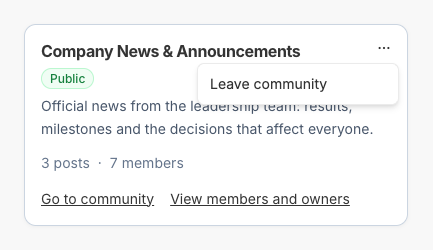
Next to the name, the More options (...) button opens a menu with Leave community. It asks for the same confirmation as the Social Feed Manager and the Community Highlight. Once the user has left, the card disappears and You have left the community. shows above the list. If leaving fails, the card stays with Failed to leave community. and the reason. The menu is on every card and cannot be turned off.
5. Good to know
A community only appears once SharePoint has indexed it, so a freshly created or promoted community is not in the overview straight away. A site without a Microsoft 365 group is never shown, because the web part works through the group.
6. Result
Employees now see the communities they belong to in one place, with a direct way into each of them.
For related topics, see How do you create and manage communities with the Social Feed Manager in Involv intranet? and How do you configure the Community Highlight web part in Involv intranet?.
Involv version 5.5