
⚠️ This is an advanced IT procedure. Enabling AI requires deploying resources in your own Microsoft Azure environment — creating an Azure AD app registration, granting admin consent, deploying a Function App and an AI model, and configuring application settings. It is intended for IT administrators who are comfortable with Azure, the Azure CLI, and SharePoint app permissions. It is not a content-editor task.
Not comfortable doing this yourself? Don't guess your way through it — request help from Involv support by opening a ticket at customer.involv-intranet.com/tickets. Misconfiguring app permissions, secrets, or endpoints can leave AI non-functional or create security risk.
1. Overview
Enabling AI in Involv intranet has two parts: first you deploy the Involv AI services in your own Azure environment, and then you connect and switch them on in Involv. Once enabled, AI powers AI Search, the AI Page Content Assistant, and Smart Content Intelligence (content governance).
This is a technical setup carried out by an administrator with access to an Azure subscription. You can deploy the Azure resources automatically with the provided Bicep scripts, or create them manually in the Azure portal. Both paths lead to the same result: a Function App that Involv calls for its AI features, backed by an Azure AI model.
Note: only GPT models are supported. If you deploy a non-GPT model, the AI features will not work.
2. What you'll learn
- What you need before you start
- How to deploy the Azure resources (automated or manual)
- How to deploy an AI model in Azure AI Foundry
- How to configure the Function App settings
- How to connect and switch on AI in Involv
- How to enable governance for Smart Content Intelligence
- How to test that AI is working
3. Prerequisites
- An active Azure subscription
- The Azure CLI installed
- Permission to create an Azure AD app registration and to grant admin consent
- The Involv AI deployment package provided by Involv (Bicep templates, scripts, and the Function App code)
- Basic familiarity with Azure services
4. Deploy the Azure resources
You can deploy the required Azure resources in one of two ways.
Option A — Automated deployment with Bicep (recommended)
- Unpack the deployment files to a local folder and open a terminal in that folder.
- Open main.parameters.json and set your resource prefix and SharePoint scope. The location parameter determines which AI models are available in your region — check the Azure AI Foundry region support documentation before choosing.
- Sign in to Azure:
az login. - Run the script for your operating system: deploy-win.ps1 (Windows) or deploy-macos.ps1 (macOS).
- Let the script run. It creates the resource group, storage account, App Service Plan, Application Insights, Log Analytics, the AI Foundry resource, and the Function App, and deploys the Function App code.
- When it finishes, the script outputs the Function App URL — note it for later.
Option B — Manual deployment
If you prefer to create the resources by hand, the package includes a full manual guide. In summary you will:
- Create an App Registration (single tenant). Add Microsoft Graph delegated permissions (
email,openid,profile) and SharePoint delegatedAllSites.Read, then grant admin consent. Under Expose an API, set the Application ID URI toapi://<client-id>, add a scope (e.g.access_as_user), and authorise the SharePoint Online Client Extensibility Web Application Principal as a client application. Note the client ID, tenant ID, and a client secret. - Create a Resource Group.
- Create an Azure AI Foundry account and project in that resource group.
- Create a Storage Account (Standard, LRS).
- Create a Function App (Code; Node.js 20 LTS; Linux; using the storage account above).
- Configure the application settings (see step 6 below) and deploy the Function App code.
- Configure CORS to allow your SharePoint/front-end origins.
5. Deploy an AI model in Azure AI Foundry
Whichever deployment path you used, you still deploy the model manually:
- Open the Azure AI Foundry portal (ai.azure.com) and select the AI Foundry resource created during deployment.
- Open the project (it shares the name of your resource group).
- Go to Model deployment > + Deploy model.
- Select a GPT model (for example GPT-5, GPT-5-mini, or GPT-5-nano) and complete the deployment. Only GPT models are supported.
- Copy the model deployment name, API version, endpoint URL (
https://<resource>.cognitiveservices.azure.com/), and API key. - (Optional) Repeat to deploy an image model (for example
gpt-image-1.5) if you want image generation, and copy its endpoint and key too.
6. Configure the Function App settings
In the Function App, open Settings > Configuration (or Environment variables) and set the AI service values you copied: the model deployment name, API version, endpoint, and API key, plus the image-model equivalents if used, and the app registration values (clientId, clientSecret, tenantId) and your SharePoint host and scope. Save and restart the Function App
7. Connect and switch on AI in Involv
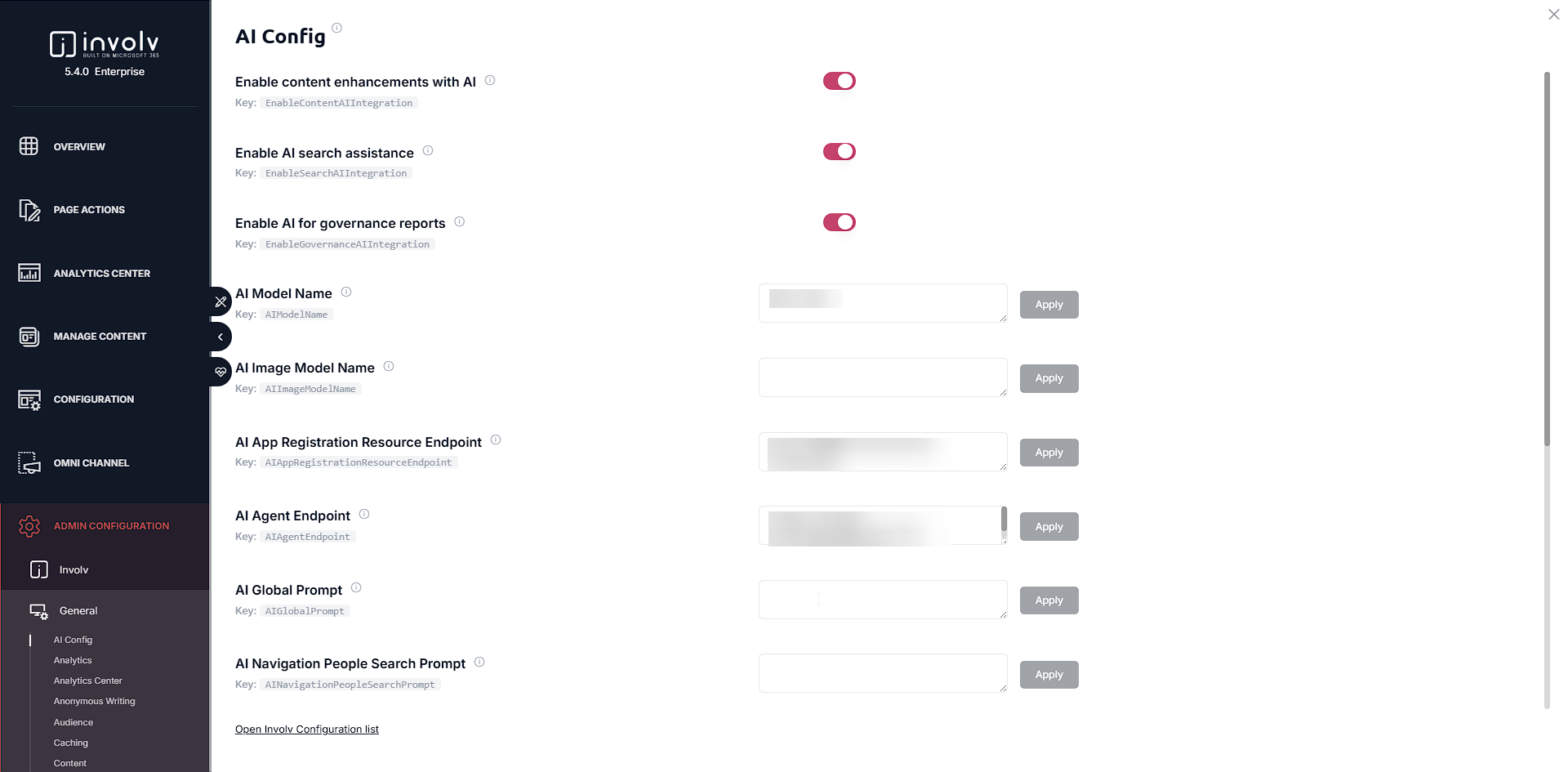
In Involv intranet 5.4, connect the deployed services from the AI Config panel: open Involv Manager and go to Admin Configuration > Involv > General > AI Config. Set:
- AI Model Name — the model deployment name from Foundry
- AI Image Model Name — the image model name (if used)
- AI App Registration Resource Endpoint — the Application ID URI,
api://<client-id> - AI Agent Endpoint — the Function App URL from the deployment
Then switch on the capabilities you want with the toggles: Enable content enhancements with AI, Enable AI search assistance, and Enable AI for governance reports. The optional navigation prompt and redirect fields let you fine-tune AI Search.
These settings are stored in the underlying InvolvConfiguration list (keys such as AIModelName, AIAppRegistrationResourceEndpoint, AIAgentEndpoint, and the enablement keys); the AI Config panel is the supported way to manage them.
8. (Optional) Enable governance for Smart Content Intelligence
Smart Content Intelligence runs scheduled, app-only governance checks, which need extra setup:
- An app registration (a dedicated one is recommended) with SharePoint application permissions
Sites.Read.All,Sites.ReadWrite.All, andSites.FullControl.All, with admin consent.Sites.FullControl.Allis required because the module uses the SharePoint Search API for tenant-wide page discovery and traffic data. - Certificate-based authentication — the SharePoint Search API does not accept client-secret app-only tokens, so a certificate is required for discovery and traffic analytics.
- An Analytics document library on the intranet site to store the governance report.
- Function App governance settings (
GOVERNANCE_ENABLED,GOVERNANCE_INTRANET_URL, schedule, client ID, certificate, etc.) and theInvolvConfigurationkeys (EnableGovernanceAIIntegration= true,GovernanceMaxAgeDays,GovernanceLowTrafficThreshold,GovernanceScanMetadataFields, …).
For what these signals mean and how content editors use them, see How do you use Smart Content Intelligence (page health) in Involv intranet?.
9. Test that AI is working
Open your intranet and use the Navigation search box. You should see a toggle to switch between regular search and AI-powered search. Switch it on and run a query — an AI summary and suggestions confirm that AI is enabled and connected.
10. Result
With the Azure services deployed, a GPT model running, and the AI Config panel connected and switched on, AI is live across your intranet: AI Search, the AI Page Content Assistant, and (if enabled) Smart Content Intelligence.
If any step did not work as expected — the search AI toggle doesn't appear, summaries don't generate, or governance reports aren't produced — don't troubleshoot blind. Open a support ticket at customer.involv-intranet.com/tickets with your Function App URL and the relevant Azure error messages, and Involv support will help you complete the setup.
Involv version 5.4
Source: Involv AI 5.4 deployment package (docs/ + scripts/), 24-06-2026