
1. Overview
The notifications menu in Involv intranet shows you everything the intranet wants to bring to your attention — news you should read, mandatory reads waiting for you, content reviews assigned to you, and other personal notifications.
In version 5.3.1, the notifications menu was redesigned. The previous version showed four separate tabs (Unread, Mandatory read, Content notifications, Content Review). The new version uses two simpler tabs (Unread and Read) with a filter button so you can narrow down by category when you need to. This makes it easier to scan everything at once and decide what to act on.
2. What you'll learn
- How to open the notifications menu from any page on the intranet
- How to switch between unread and read notifications
- How to filter notifications by type
- How to act on a notification (open, mark as read)
- Where to manage your notification preferences
3. Open the notifications menu
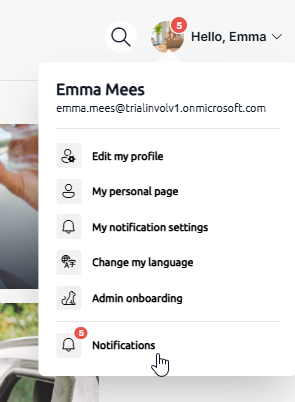
The notifications icon is in the top bar of every intranet page, next to your profile picture. A red badge on the icon shows how many unread notifications you have. Click the icon to open the menu.
The menu opens as an overlay over the current page. Close it by clicking the back arrow or anywhere outside the panel.
4. The Unread and Read tabs
The redesigned menu has two tabs at the top:
- Unread — notifications you haven't acted on yet. The number next to the tab shows how many.
- Read — notifications you've already opened or dismissed. Useful when you want to find something you saw earlier.
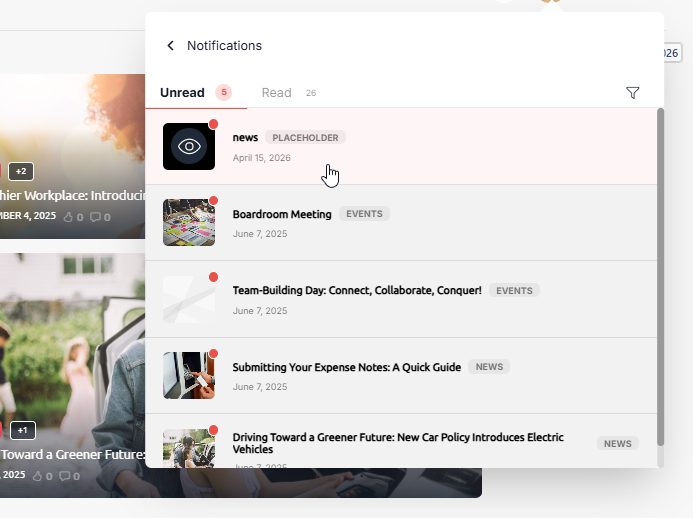
Click any notification to open it. Notifications move from the Unread tab to the Read tab automatically once you've opened them.
5. Filter notifications by type
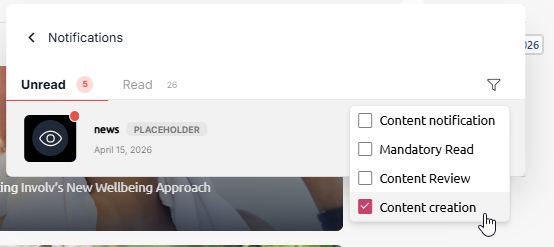
To the right of the tabs you'll find a filter icon (a small funnel). Click it to filter the visible notifications by category, including:
- Mandatory read
- Content notifications
- Content review
- Other notification types your intranet uses
The filter applies to both the Unread and Read tab. Clear the filter to see all notifications again.
6. Manage your notification preferences
The notifications menu shows what's been pushed to you. To control which notifications you receive in the first place — by category, channel (in-app, mobile, email), and frequency — open your personal notification settings.
See How to set my personal notification settings and preferences? for the full preferences walkthrough.
7. Result
You can now find, filter, and act on your notifications quickly with the redesigned menu. Keep an eye on the red badge for new items, use the filter when one specific category matters, and adjust your preferences if you want fewer or different notifications in the future.
Related articles:
Involv version 5.3