
1. Overview
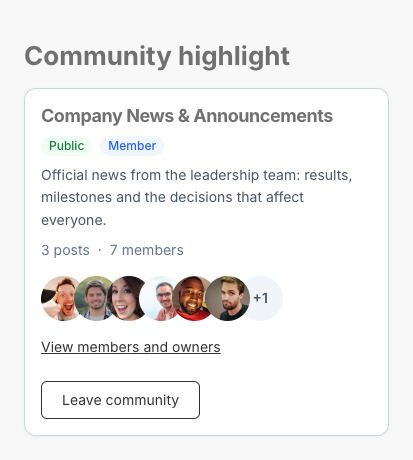
The Involv Social Feed Community Highlight web part is a card about a single community: its name and description, whether it is public or private, how many posts and members it has, who is in it, and the button to join or leave it.
It is the card that sits next to the feed on the homepage of a community, which the Social Feed Manager lays out automatically when a community is promoted. You can also place it on any other page, for example to promote a community on the homepage of the intranet.
2. What you'll learn
- How to add the Community Highlight web part to a page
- How to highlight the current community or a specific one
- What the card shows to members and non-members
- How joining and leaving works from the card
3. Add and configure the web part
Edit the page, add Involv Social Feed Community Highlight and open the property pane. Title is shown above the card.
Community to highlight decides which community the card is about. The current site is the default and highlights the community behind the site the web part is on; there is nothing else to configure, which is why community homepages use it. A specific community lets you pick a Microsoft 365 group under Community group, for a card on a page somewhere else.
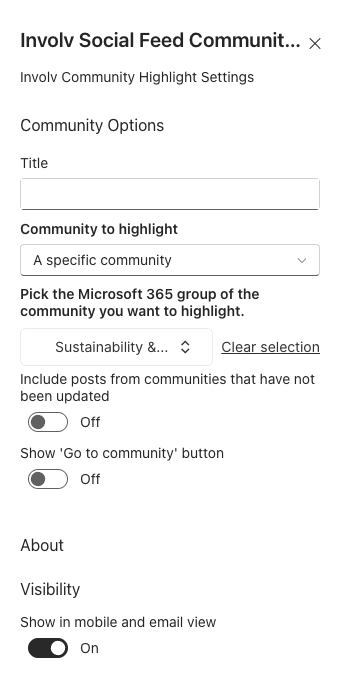
Show 'Go to community' button adds a button to the community site. It is off by default. Include posts from communities that have not been updated only matters while your tenant still has communities set up with an earlier version; see How do you upgrade and troubleshoot Social Feed communities in Involv intranet?.
4. What users see
The card shows the name and description of the community, a Public or Private badge, and a Member badge for people who are in it. Below that are the number of posts and the number of members, and the faces of the first six people, owners first, each linking to their profile. View members and owners opens the full list.
The post count uses the same search as the feed, so it matches what people see when they open the community. It only counts posts SharePoint has indexed, and is an estimate for large communities.
5. Join and leave from the card
People who are not a member see Join community. A public community lets them in straight away. For a private community the card sends a request to the owners and shows it as pending until it is approved, for at most 14 days. After that, the card offers Join community again.
Only accounts with an Exchange mailbox can become a member of the Microsoft 365 group behind a community. Someone without a mailbox who tries to join sees You can't join this community because your account has no mailbox. Please contact your IT department. A join that fails for another reason shows Failed to join. Please try again or contact support., followed by the reason when there is one.
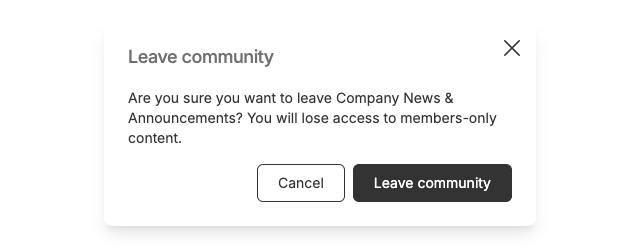
Members see Leave community. Leaving a private community means losing access to its content, which the confirmation points out before the user leaves.
6. Result
The page now shows a card that tells people what a community is about, how active it is and who is in it, and lets them join or leave it in one click. The card is about a community, not about a site: a site without a Microsoft 365 group has nothing to highlight, and the card explains that instead of showing an error.
For related topics, see How do you create and manage communities with the Social Feed Manager in Involv intranet? and How do you configure the My Groups web part in Involv intranet?.
Involv version 5.5