
1. Overview
The breadcrumb shows users where they are in Involv intranet: a short path from the home page to the page they are reading, for example Home › Departments › HR › Policies. Users who land on a page from search or from a link in a news item can see at a glance which part of the intranet the page belongs to and go one level up with a single click.
The path is not typed by hand on every page. Involv intranet builds it from the navigation lists you already maintain: the main InvolvNavigation list in the root site and the InvolvLeftNavigation list in each site. You can show the breadcrumb with the Left Navigation web part in the Breadcrumbs display mode.
Since Involv intranet 5.4.1, navigation lists in different sites can be chained. A department site then continues the path that the root site defines, and every page in that site, also a page that is not in any list, shows the same path as the site home. Use chaining when your intranet has a structure deeper than the main navigation, such as departments grouped under a division.
2. What you'll learn
- How to show the breadcrumb with the Left Navigation web part
- Where the breadcrumb takes its path from, and in which order
- How to chain InvolvLeftNavigation lists across sites
- When the breadcrumb falls back to a fully dynamic path
- Where to look when a change to a list does not show up yet
3. Watch interactive tutorial
Watch the interactive demo below to follow each step by step.
4. Show the breadcrumb with the Left Navigation web part
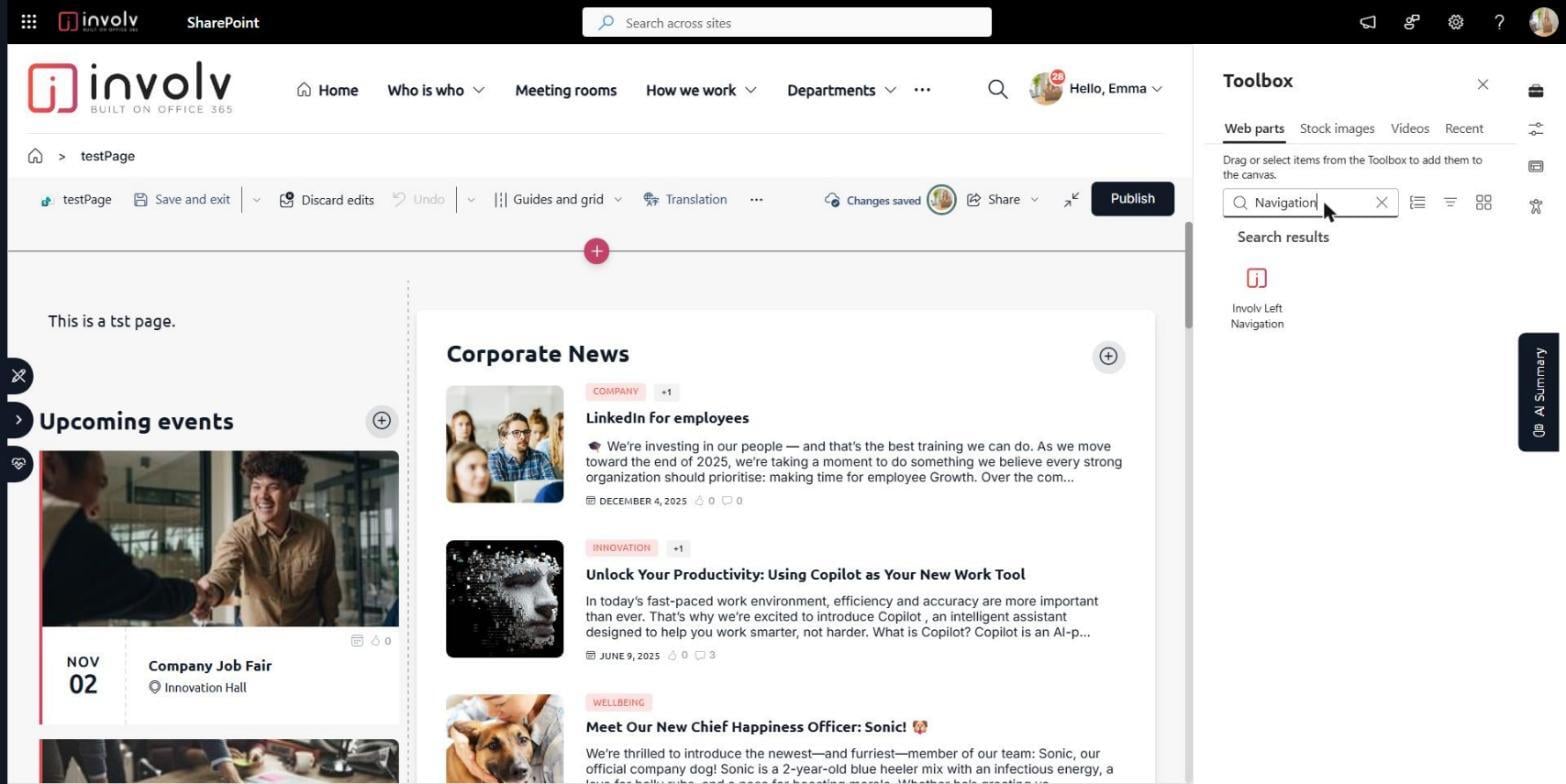
Edit the page and add the Left Navigation web part where the breadcrumb should appear, usually at the top of the page. Open the web part settings with the pencil icon. Under Select the site that contains the configuration list, pick the site that holds the navigation list, and leave Configuration list name on InvolvLeftNavigation unless the site uses a custom list. Choose the node the path starts from in Choose the top-level navigation node.
Set Display mode to Breadcrumbs. The web part now shows the path from the top-level node to the current page instead of a tree. Turn on Prefer user language if your navigation nodes have titles in several languages: the breadcrumb then shows each step in the language of the user. Republish the page to make the breadcrumb visible to everyone.
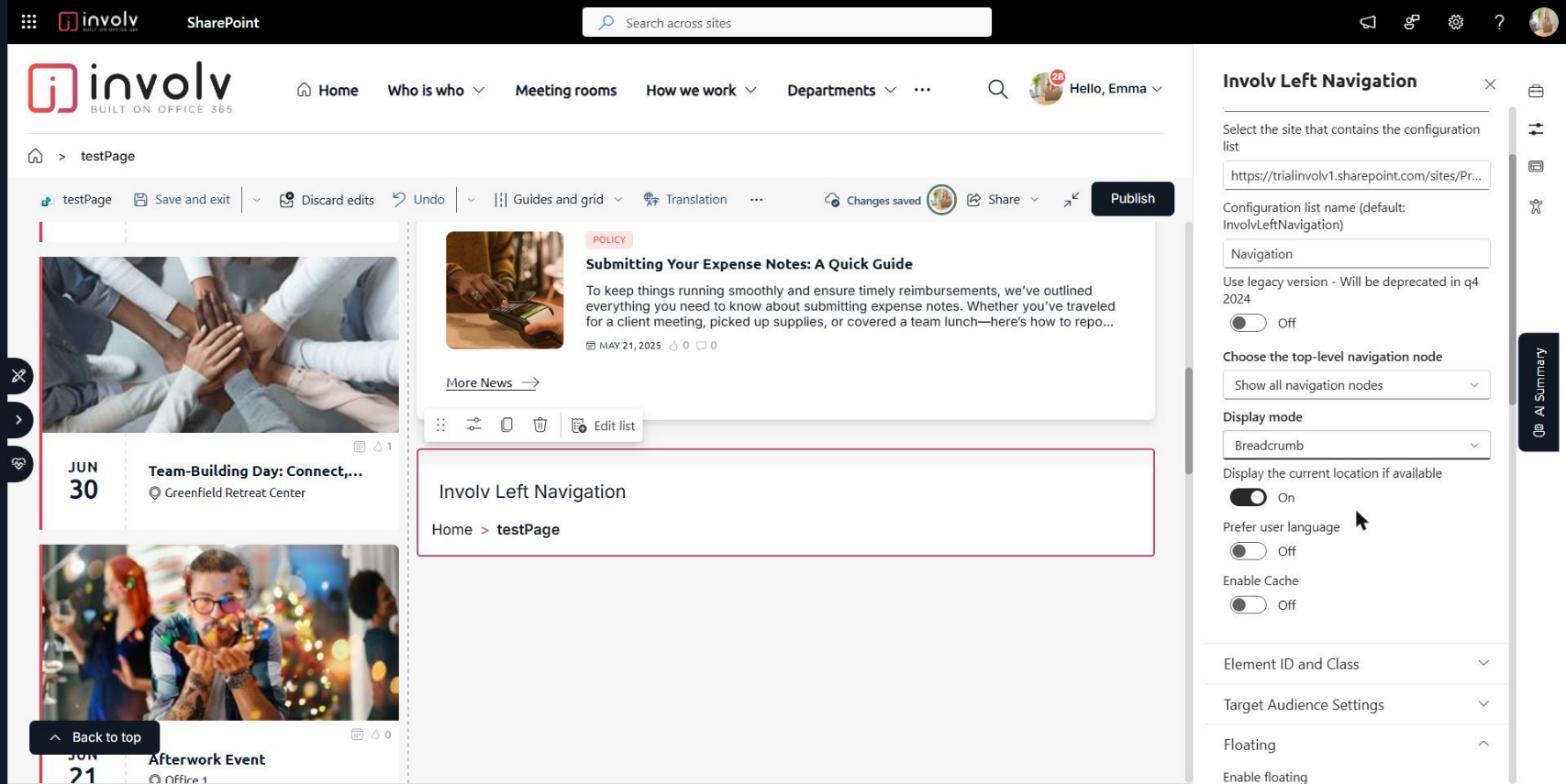
The other settings of the web part, such as caching and audience targeting, work the same as for the hierarchical and flat modes. They are described in How to configure the Involv Left Navigation.
5. Where the breadcrumb takes its path from
For every page, Involv intranet looks for the most specific path it can find, in this order:
| Step | What is checked | What the user sees |
| 1 | The page itself is a node in a navigation list. | The path as the list defines it. |
| 2 | The page is not in a list, but its site URL is a node in one of the chained lists. The last list in the chain is checked first. | The path up to the site from the chained lists, followed by the page title. |
| 3 | The site URL is a node in the main InvolvNavigation list of the root site. | The path up to the site from the main navigation, followed by the page title. |
| 4 | Nothing matches. | A fully dynamic path: the home icon, the site name and the page title. |
Step 2 is new in Involv intranet 5.4.1. Before, a page without its own list entry skipped the chained lists and took a shorter path from the main navigation, so the site home and its pages could show different paths. The breadcrumb also no longer adds the page name after the last navigation level when that level already is the page, and no longer keeps a step of the page the user visited before.
6. Chain navigation lists across sites
Chaining lets each part of the intranet keep its own navigation list while the breadcrumb still shows one continuous path. A typical case: the root site lists the divisions, and each division's department sites have their own InvolvLeftNavigation list maintained by that department.
Chaining works through the setting NavigationBreadcrumbListUrls in the Involv Global Params list (InvolvGlobalParam). Add an item with NavigationBreadcrumbListUrls as its Title and, in the Value field, a JSON array with the URLs of the navigation lists. Put the lists in order from the top of the structure to the bottom:
["https://contoso.sharepoint.com/sites/intranet/Lists/InvolvLeftNavigation", "https://contoso.sharepoint.com/sites/hr/Lists/InvolvLeftNavigation"]
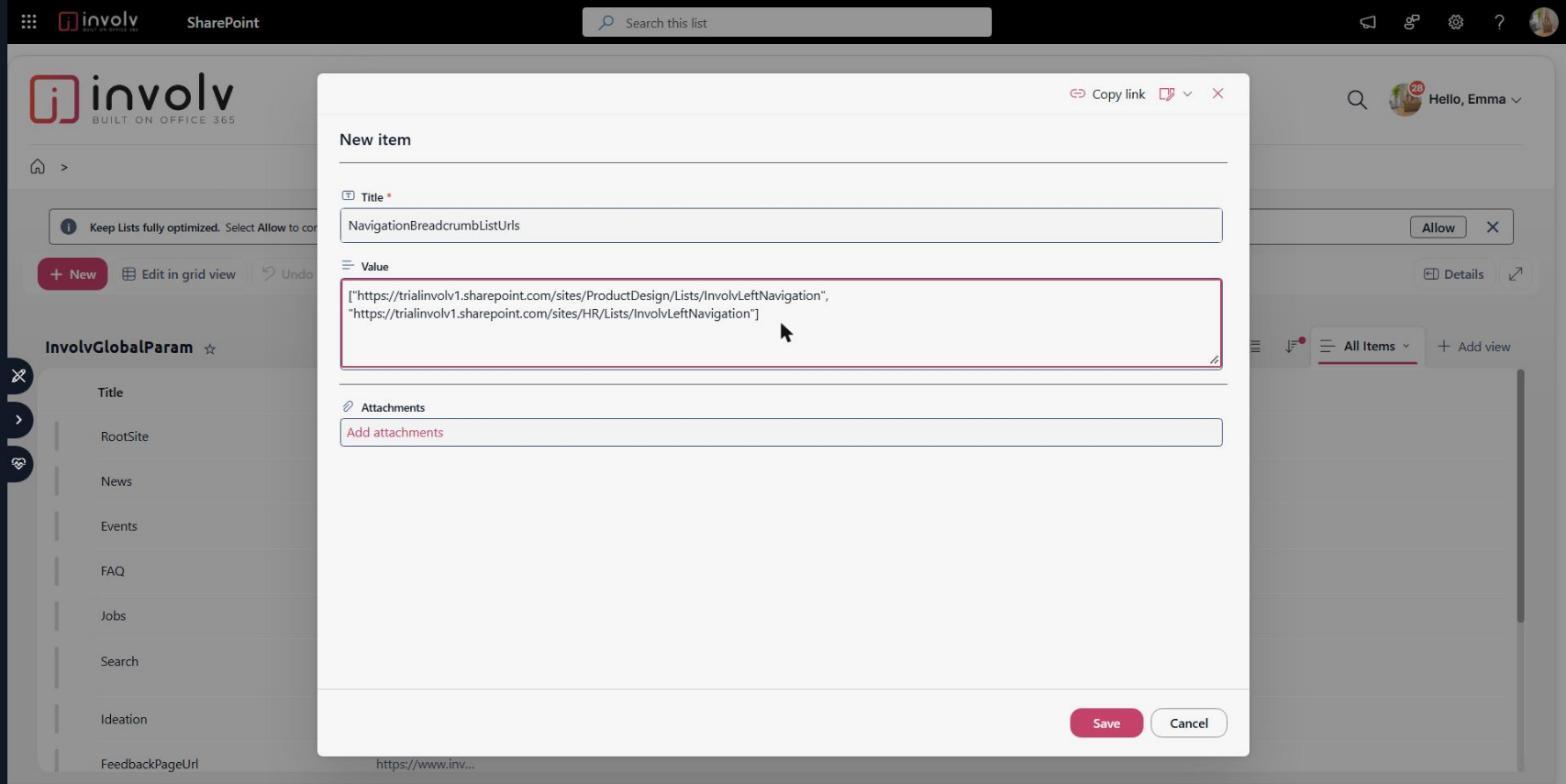
The value must be valid JSON: square brackets, double quotes and a comma between the URLs. When it cannot be read, Involv intranet ignores the setting and the breadcrumb continues with steps 3 and 4 above.
What makes two lists connect is the link between them: the first node of a lower list must point to the same URL as the node in the list above where that part of the structure starts. In the example, the HR list starts with a node for the HR site, and the root list has a node with that same URL. The breadcrumb walks from the last list in the chain up to the first, and at each list it continues from the URL it found in the list below.
7. When a change does not show up yet
Involv intranet stores the breadcrumb path in the browser to keep pages fast. After you change a navigation list, a user can see the previous path for up to a day. To check your change immediately, open the page in a private browser window. Users get the new path automatically once the stored copy expires.
8. Result
Every page shows a path that matches the structure of your intranet, also on department sites with their own navigation list and on pages that are not in any list. The site home and all its pages share the same path, and the breadcrumb follows the user's language when the navigation nodes are translated.
For related topics, see How to configure the Involv Left Navigation and How to add and change navigation in your Involv intranet.
Involv version 5.4.1