
1. Overview
The Cast configurator allows you to create digital signage carousels that can be displayed on screens throughout your organization. By creating a Cast configuration and defining one or more views, you can control layout, aspect ratio, refresh intervals, branding, and the content that rotates on screen. This article explains how to create a new Cast configuration and build custom carousel views step by step.
2. What you’ll learn
After reading this article, you will be able to:
-
Create a new digital signage carousel configuration
-
Configure general Cast settings such as aspect ratio, title, and refresh interval
-
Authorize access to Cast views when device code authentication is enabled
-
Build custom carousel views using a drag-and-drop layout
-
Configure layout, branding, timing, and field mappings for carousel items
-
Preview how incidents, upcoming events, and other items appear on screen
3. Watch interactive tutorial
Watch the interactive demo below to follow each step by step.
4. Create a new Cast configuration
-
Open the Cast configurator.
-
Click Add new to start creating a new carousel.
-
Select New configuration to create a fresh Cast configuration.
-
Review the general configuration settings to see the default values.
-
Select the desired aspect ratio from the dropdown.
-
Enter a clear and recognizable title for your configuration.
-
Set the refresh interval (in minutes) to control how often content is refreshed.
-
(Optional) Add custom CSS to tailor the styling and appearance of the Cast view.
-
Click Confirm to save the configuration.
After saving:
-
Copy the URL of the Cast configuration. This link is used to display the carousel on your signage screen
5. Authorize access to Cast views (if applicable)
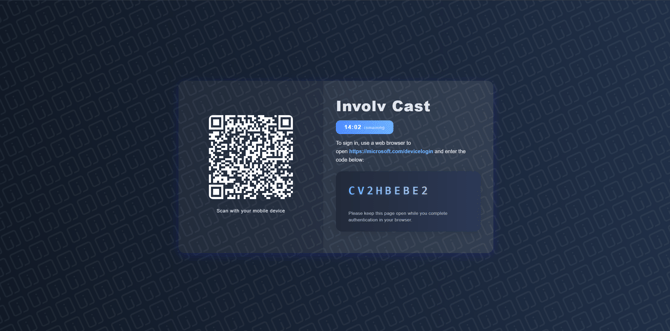
If, during the configuration of the Cast configurator web part, Cast V2 Device Code Authentication was selected:
-
You will be presented with a login screen.
-
Complete the authorization to allow access to your Cast views.
Once authorized, you can start creating and editing views.
6. Create and configure views
-
Start creating a new view.
-
Choose between:
-
Full screen
-
Build your own
-
-
Select Build your own to create a custom layout.
-
Click Confirm to finalize the template selection.
-
Use drag and drop to define the order of carousel items.
-
Click the grid icon to configure the layout of the Cast display.
-
Define the main display configuration (columns, sections, or full-width layout).
-
Add a branding image URL (for example, your organization logo).
-
Adjust the carousel item interval slider to control how long each item is displayed.
-
Configure the field mappings to determine which content fields are shown.
You can immediately preview:
-
A basic full-width layout
-
Carousels containing incidents
-
How items are rendered on the Cast screen
-
A preview of upcoming carousel items
-
Additional content types such as upcoming events
7. Query settings
| Text | InvolvCategoryOWSCHCS:News (TargetChannel:Cast OR TargetChannel:All) |
| Displayed elements | How many elements in total are displayed |
| Sort by | RefinableDate05 |
| Sort direction | Ascending or descending order |
| Branding image url |
Give the url to a item in your site assets for example: https://trialinvolv1.sharepoint.com/sites/ProductDesign/_api/Web/GetFileByServerRelativePath(decodedurl='/Sites/ProductDesign/SiteAssets/Cast/Logo/Involv.png')/$value |
8. Field mapping reference
Use the following fields when configuring your carousel mappings:
| Title | Title |
| Description | Description |
| Picture | PictureThumbnailURL |
| Date | RefinableDate05 |
-
-
Description
-
PictureThumbnailURL
-
RefinableDate05
9. Result
Once configured, your digital signage carousel will automatically rotate through the selected content, providing a clear and visually consistent experience across all Cast-enabled screens.
Involv version: 5.3