1. Overview
News items on your intranet are managed through the Content Admin panel. Here you can create new articles, define metadata (such as categories, departments and templates), schedule publication, set mandatory read receipt and choose where your article will appear.
This guide walks you through every field and setting you will encounter when creating a news item.
2. What you'll learn
-
How to create a news item from the Content Admin panel
-
What each news field means and how to configure it
-
How scheduling, targeting and templates work
-
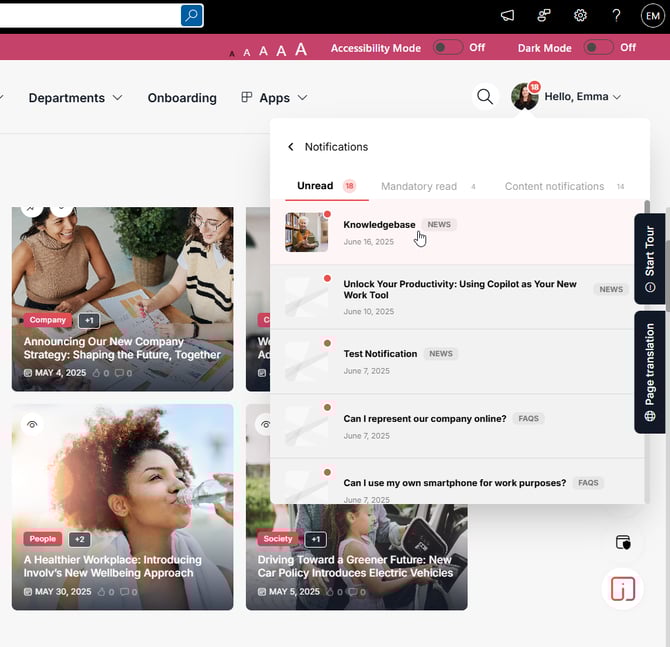
How publishing triggers notifications and mandatory reads
3. Watch interactive tutorial
4. Step-by-step instructions
Step 1 — Open the Content Admin panel
Navigate to Content Admin from your left navigation.
Select News.
Step 2 — Create a news item
Click Create news to start a new article.
Step 3 — Fill in all news information
You will see a form containing several fields. Below is an explanation of each:
| Name | 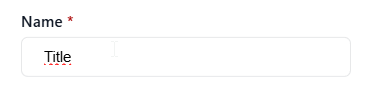 |
| News article date | 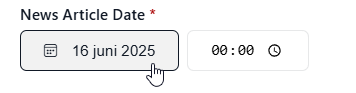 |
| Content category | 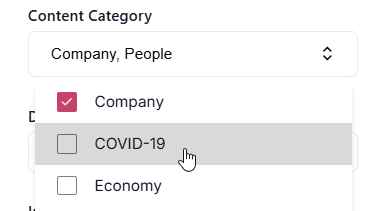 |
| Department | 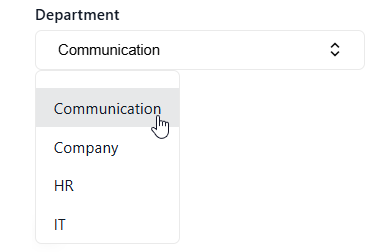 |
| In Slider/hero |  |
| Important |  |
| Require Manual read receipt |  |
| Scheduling End | 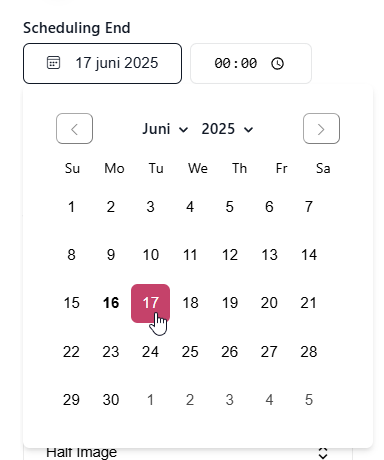 |
| Scheduling Online | 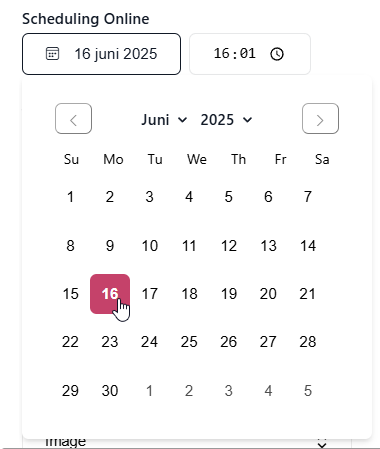 |
| Target channel | 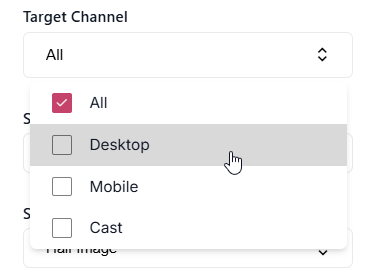 |
| Search boost | 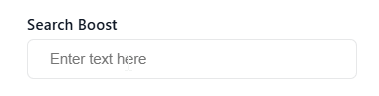 |
| Slider Template Options | 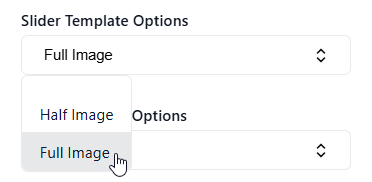 |
| News Template Options | 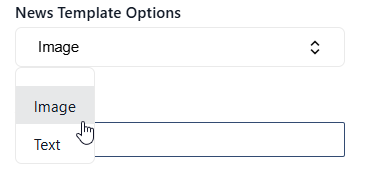 |
| Audience | 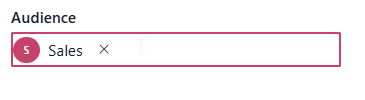 |
| Template | 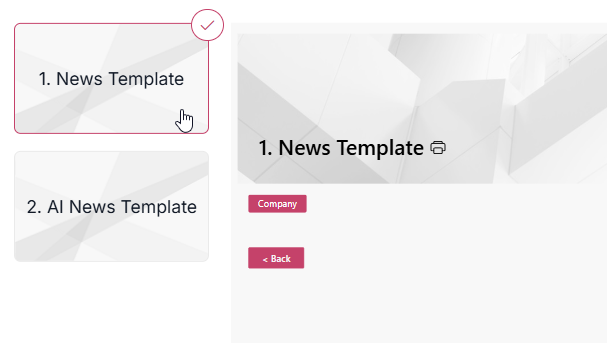 |
Name
The title of your article. This is visible in lists, on cards and in search.
News Article Date
The publication date that appears on the article.
This can differ from the actual publish date if needed.
Content Category
Select one or more categories (e.g., Company, People, HR, etc.).
These categories help with filtering and search across your intranet.
Department
Choose the department this news relates to.
This helps structure content and supports targeted communication.
In Slider/Hero
Enable this option if your news should appear in the homepage slider or hero banner.
Important
Mark the news item as important. This visually highlights it across the intranet.
Require Manual Read Receipt
If enabled, users will need to confirm they have read the article.
You can track confirmations in the Mandatory Read overview.
Scheduling End
Set the date when the news item should stop being visible.
Scheduling Online
Choose the date and time when the article becomes visible.
Target Channel
Define where the news should appear:
-
All
-
Desktop
-
Mobile
-
Cast (Digital signage)
Search Boost
Increase visibility in search results by adding keywords.
Useful for high-priority articles.
Slider Template Options
Select how the item appears in the slider (e.g., Full Image or Half Image).
News Template Options
Choose the page layout for your news article (Image or Text).
Audience
Limit visibility to selected audiences if required (e.g., only Sales).
This refines who sees the content in their feed.
Template
Choose a news template layout for your article.
This affects how the page looks when opened.
5. After saving your news
Once you confirm your choices, the news page is created.
You can now start editing the page content (text, images, layout, web parts).
6. Publish your news
When your page is ready, click Publish.
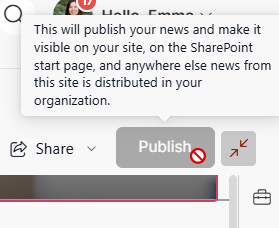
Publishing triggers the appropriate communication channels depending on your settings:
-
Notifications (via the Involv Notification Center) →
See: https://knowledge.involv-intranet.com/notification-center -
Mandatory Reads (if enabled)
-
Emails (if configured for your tenant)
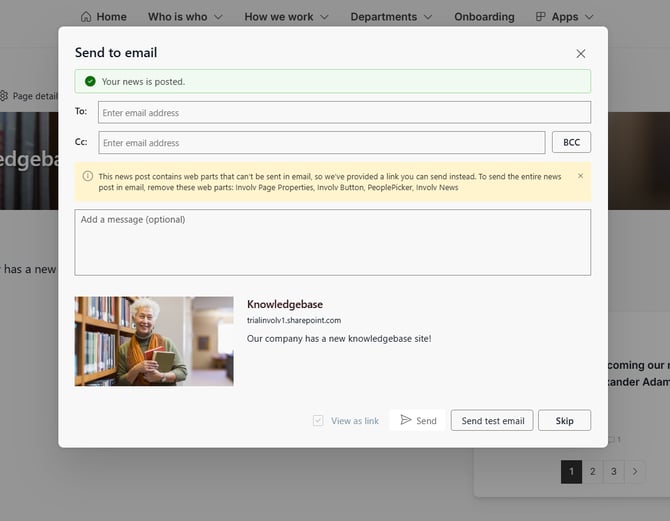
These allow users to be informed immediately when new content goes live.