
1. Overview
On-the-fly translation lets users read any intranet page in a language other than the one it was published in, without you having to duplicate or manually translate content. When the feature is enabled, a Page translation option appears for users, and they can pick from the list of languages you have made available.
This is the right feature when you want to make a single, centrally-maintained intranet readable for an audience that speaks several languages — for example a Belgian organisation publishing in Dutch but with French- and German-speaking employees, or an international company adding Bulgarian or Serbian readers without setting up parallel sites.
This is different from two related settings:
- Changing your personal interface language — only affects menus, buttons and system messages for your own account, not page content.
- Adding a system language to Involv intranet — makes a language available across the platform's UI elements (navigation, web parts), separate from the on-the-fly translation of page content described here.
If you reached this article looking for one of those, see How to set my language? (personal UI language) or How to add another language to Involv functionalities (system languages).
This article is for intranet administrators who need to enable on-the-fly translation for the first time, or to add a new target language to an environment where it is already enabled.
2. What you'll learn
- How to enable on-the-fly translations from the admin panel
- How to add a target language using the correct SharePoint language code (LCID)
- Where to find the language code for German, French, Dutch and other common languages
- Why the cache must be cleared before changes take effect
- How users select a translation language once it is configured
- How to troubleshoot a language that does not appear in the Page translation dropdown
3. Open the on-the-fly translation settings
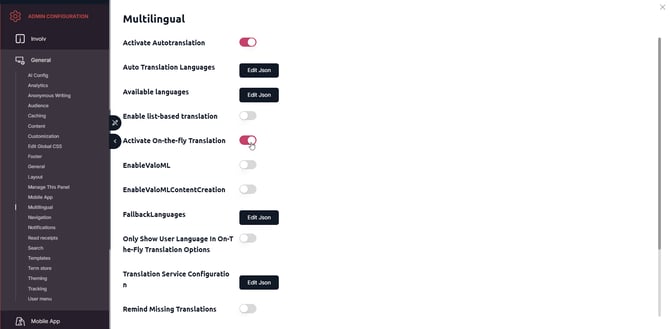
On-the-fly translation is configured in the Involv admin panel, not on individual pages or web parts. Open the admin panel from the Involv intranet and go to the Configurations section.
In the configurations list, locate the setting On-the-fly translations. Activate the toggle to enable the feature for your tenant. Once activated, the related field Auto translation languages becomes editable.
4. Add a language using its SharePoint language code
The Auto translation languages field expects a JSON object that maps a display name to a Microsoft SharePoint Language Identifier (LCID). The display name is what users see in the Page translation dropdown; the LCID tells SharePoint which language to translate to.
To add a single language:
{"German": 1031}
To add several languages at once, separate them with commas:
The display name is free text — you can also write "Deutsch", "Français", "Nederlands" if you prefer to show users their own language name.
Common SharePoint language codes
| Language | Display name (suggested) | LCID |
|---|---|---|
| German | German / Deutsch | 1031 |
| French | French / Français | 1036 |
| Dutch | Dutch / Nederlands | 1043 |
| Spanish | Spanish / Español | 3082 |
| Italian | Italian / Italiano | 1040 |
| Portuguese | Portuguese / Português | 2070 |
| Polish | Polish / Polski | 1045 |
| Bulgarian | Bulgarian / Български | 1026 |
| Serbian | Serbian / Srpski | 2074 |
| Czech | Czech / Čeština | 1029 |
| Romanian | Romanian / Română | 1048 |
| Swedish | Swedish / Svenska | 1053 |
For any language not listed above, look up the LCID in Microsoft's official SharePoint Language Identifiers documentation.
[screenshot: Auto translation languages field with the JSON example filled in]
5. Apply the change and clear the cache
After editing the JSON, click Apply to save the configuration. The new languages will not appear in the Page translation dropdown immediately — Involv intranet caches translation settings for performance, and the cache must be cleared before the change takes effect.
Use the Clear cache action in the admin panel after applying. Once the cache is cleared, the new languages are available the next time a user reloads an intranet page.
6. How users translate a page
Once on-the-fly translation is enabled and at least one language is configured, users see a Page translation option in the page interface. They click it, pick a language from the list, and the page content is translated dynamically.
The translation happens on demand — there is no need for content creators to publish multiple versions, and translations stay in sync automatically when the original page is updated.
7. Troubleshoot a language that does not appear
If a language has been added to the Auto translation languages field but does not appear in the Page translation dropdown for users, check the following in order:
- The on-the-fly translations toggle is on — adding a language without enabling the feature itself has no effect
- The JSON is valid — a missing comma, mismatched quote or wrong bracket will silently invalidate the whole list. Paste it through a JSON validator if in doubt.
- The LCID is correct for the language you intended — for example 1031 for German, not 1032 (which is Greek)
- The cache has been cleared after the change was applied
- The user has reloaded the page — open browser tabs may still hold the old cached configuration
- The display name is unique within the JSON — duplicate keys will cause the second entry to overwrite the first
If the language still does not appear after these checks, contact Involv support with a screenshot of the Auto translation languages field and the language you are trying to add.
8. Result
Users can now read pages in any of the languages you have configured, directly from the Page translation option in the page interface. Adding a new language later only requires editing the JSON, applying the change, and clearing the cache — no content needs to be duplicated and translations stay in sync with the source page automatically.
For related topics, see How to manage News in Involv intranet and How to set up the homepage.
[screenshot: Page translation dropdown showing the configured languages from the user's perspective]
Involv version 5.3
For versions before Involv 5.2