
1. Overview
The Content Calendar in the Involv Manager gives you a central view of all planned activities across your intranet — news articles, newsletters, incidents, events, FAQs, jobs, notifications, and placeholders. You can switch between a calendar view and a list view, apply filters, and create or edit activities directly from the calendar if you have the right permissions.
The Content Calendar is most useful for content teams who need to coordinate communication across the organisation, see at a glance what's scheduled when, and avoid conflicting publication dates.
2. What you'll learn
- How to open and navigate the Content Calendar
- How to switch between calendar view and list view
- How to filter content by type, status, category, and date
- How to create, edit, and delete activities directly from the calendar
- How to schedule placeholders ahead of time and assign them to team members
3. Watch interactive tutorial
Watch the interactive demo below to follow each step and see how to work with the Content Calendar.
4. Open and navigate the calendar
The Content Calendar lives inside the Involv Manager. Open the Involv Manager from your profile menu, then go to Manage Content → Content Calendar.
Use the navigation arrows at the top to move between months. The default view shows the current month with all planned activities placed on their scheduled dates.
In the top-right of the calendar, switch between two views:
- Calendar — the visual month/week grid with each activity placed on its date
- List — a chronological list of all activities, easier to scan when you have many items
5. Filter content
Three filter controls at the top of the calendar narrow down what's visible:
- Type — News, Events, FAQ, Jobs, Incident, Notification, Newsletter, and Placeholder
- Status — Draft, Scheduled, or Published
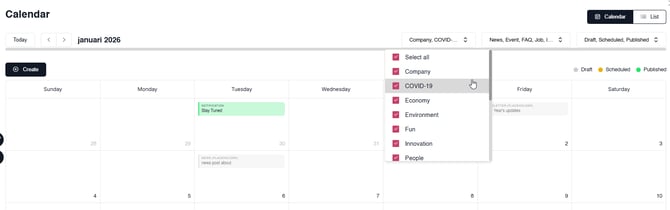
- Category (added in 5.3) — filter by content category, such as Company, COVID-19, Economy, Environment, Fun, Innovation, or People. Useful when your intranet uses categories to segment content for different departments or audiences.
You can combine filters to focus on a specific subset, for example "all scheduled News in the Company category for next month".
6. Manage activities directly from the calendar
Click any activity on the calendar to open it. Depending on your permissions you can:
- View the activity details
- Edit the activity (if you have edit rights)
- Delete the activity
- Open it in a separate page for full editing
This means you can manage your content without first navigating to the dedicated News, Events, or Newsletter sections.
7. Schedule directly from the calendar (5.3)
Since version 5.3, you can create new content directly from the calendar without going to a separate creation flow.
- Click the Create button (or click any future date on the calendar).
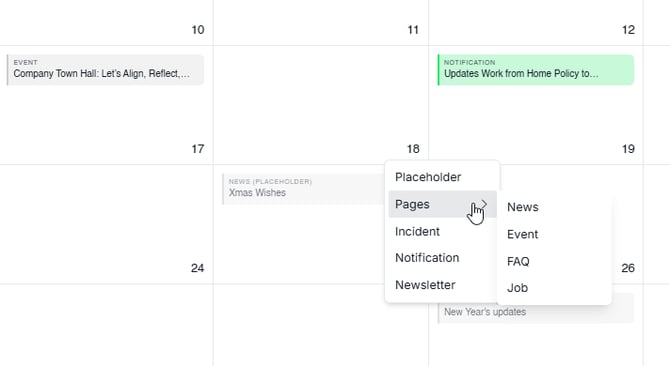
- Choose what to schedule:
- Placeholder — a reminder of upcoming content, with the actual content filled in later
- Pages — News, Event, FAQ, or Job
- Incident
- Notification
- Newsletter
- The selected date is set automatically. Fill in the rest of the details and save.
This is the fastest way to map out your communication plan visually before you start writing.
8. Plan ahead with placeholders
A placeholder is a scheduled reminder that on a specific date you (or someone on your team) will publish a piece of content — even if you don't know what to write yet. Use placeholders to lock in publication dates early and fill in the content closer to the date.
Create a placeholder (5.3)
- Select a future date on the calendar and choose Placeholder.
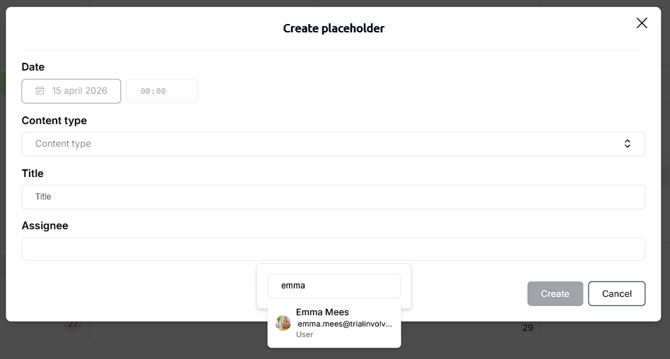
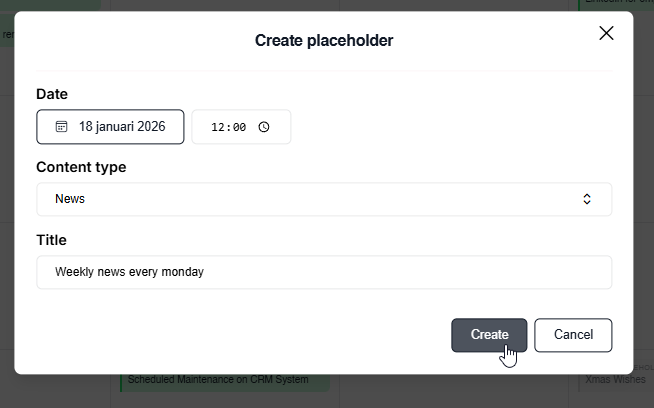
- In the Create placeholder dialog, fill in:
- Date and Time — when the content should publish
- Content type — the type of content the placeholder represents (News, Newsletter, Incident, etc.)
- Title — a short description so you remember what the placeholder is for (e.g., "Weekly news every Monday")
- Assignee - 5.4 You can assign a content creator to make the placeholder content
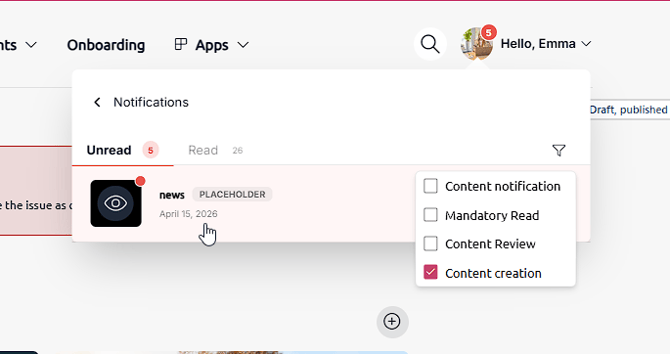
The person then gets a notification to create that content.
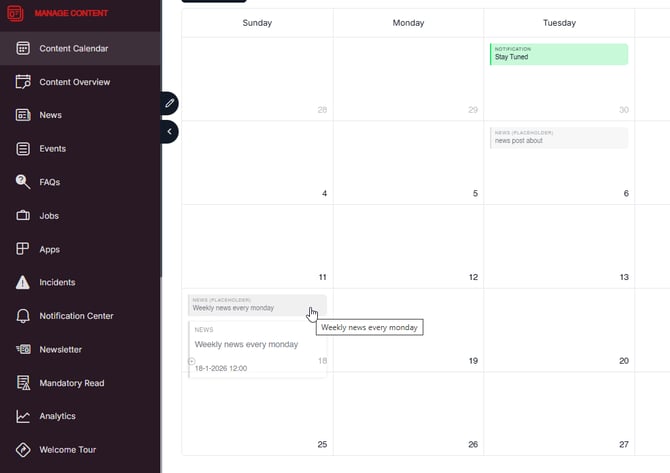
- Click Create. The placeholder appears on the calendar at the chosen date and time.
When the date approaches, click the placeholder, replace it with the actual content, and publish.
Assign people to a placeholder (5.4)
Since version 5.4, you can assign one or more people to a placeholder. This is useful when you plan content centrally but a specific colleague is responsible for writing or publishing it.
When you create or edit a placeholder, select the team member(s) who should pick it up. Assigned people will receive a notification in their user menu so they know that a placeholder is waiting for them.
9. Result
You now have the Content Calendar set up as your central planning view, with all activities filterable by type, status, category, and date. You can schedule new content directly from the calendar, use placeholders to reserve dates ahead of time, and assign placeholders to team members so the right person picks up the work.