
1. Overview
In a news feed built with the PnP Search Results component, news is usually sorted by publication date, so the newest article is always shown first. Sometimes an older article needs to stay visible for longer: a policy update, a key announcement or a reminder that every employee should see.
Involv intranet lets content creators mark a news article as Important. When you use that flag as the first sort field of the PnP Search Results component, important articles are pinned at the top of the feed, whatever their publication date. The other articles follow underneath in their usual order, and a pin icon shows readers which articles are pinned.
Use this setup on any news feed where communicators need to keep selected articles in a fixed position until they remove the Important flag again.
2. What you'll learn
- When to use pinned items in a PnP Search news feed
- Where to find the sort settings of the PnP Search Results component
- How to add the Important flag as the first sort field and the news date as the second
- How to show the pin icon on pinned articles
- How to check the result on the page
3. Watch interactive tutorial
Watch the interactive demo below to follow each step by step.
4. Before you start
The Important flag is stored in the crawled property ows_InvolvImportant. To sort on it, this crawled property must be mapped to a refinable managed property in the SharePoint search schema, for example RefinableString103. Check with your SharePoint administrator which refinable managed property is used in your tenant, as the number can differ per environment.
Content creators mark an article as important with the Important option when they create or edit a news article. See How to create news for an overview of all news fields.
5. Open the sort settings of the PnP Search Results component
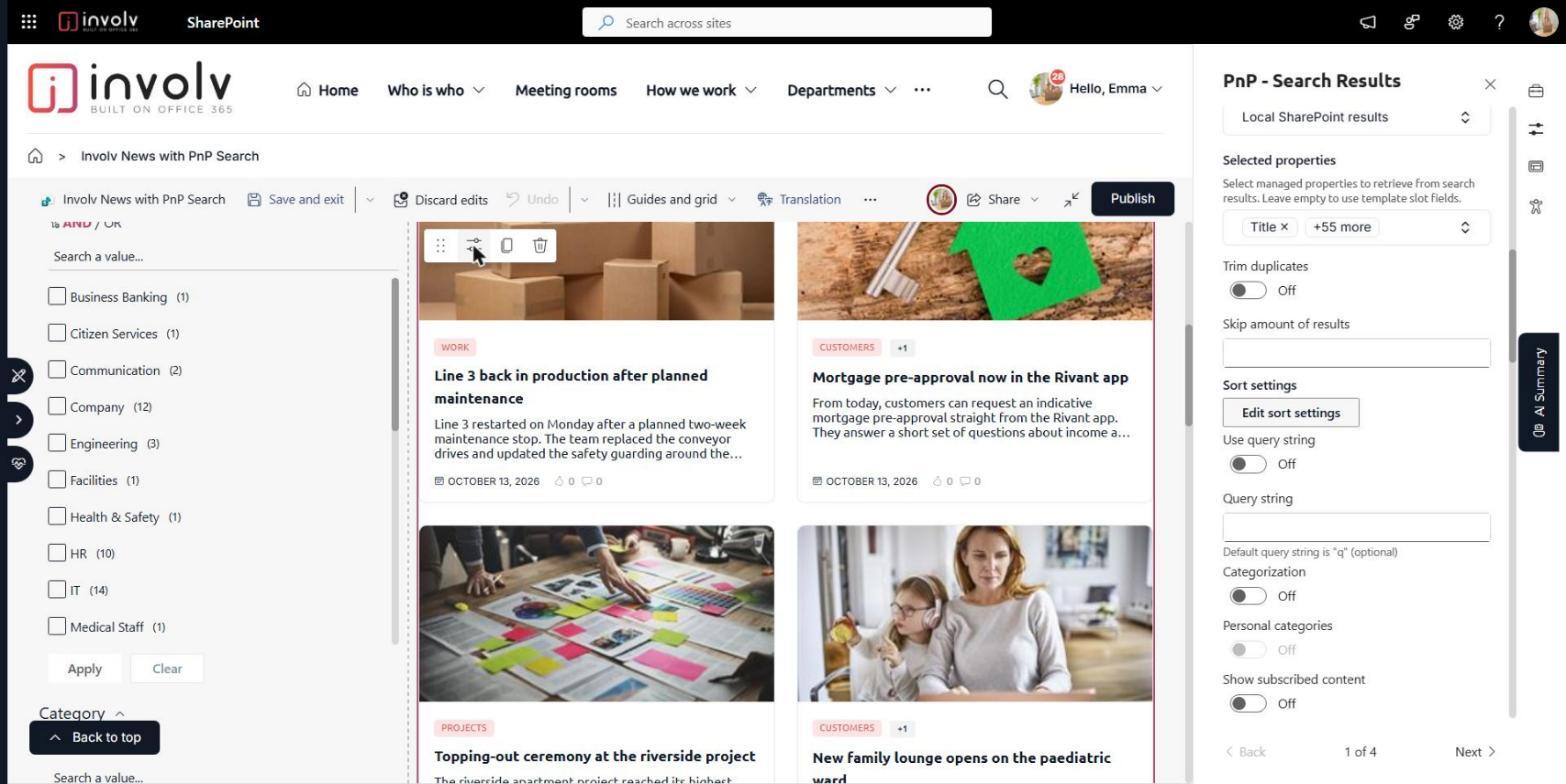
Go to the page that holds the news feed and switch the page to edit mode. Select the PnP Search Results component and open its property pane with the pencil icon. On page 1 of the property pane, with Involv Search as data source, scroll down to Sort settings and click Edit sort settings.
6. Sort on the Important flag first, then on the news date
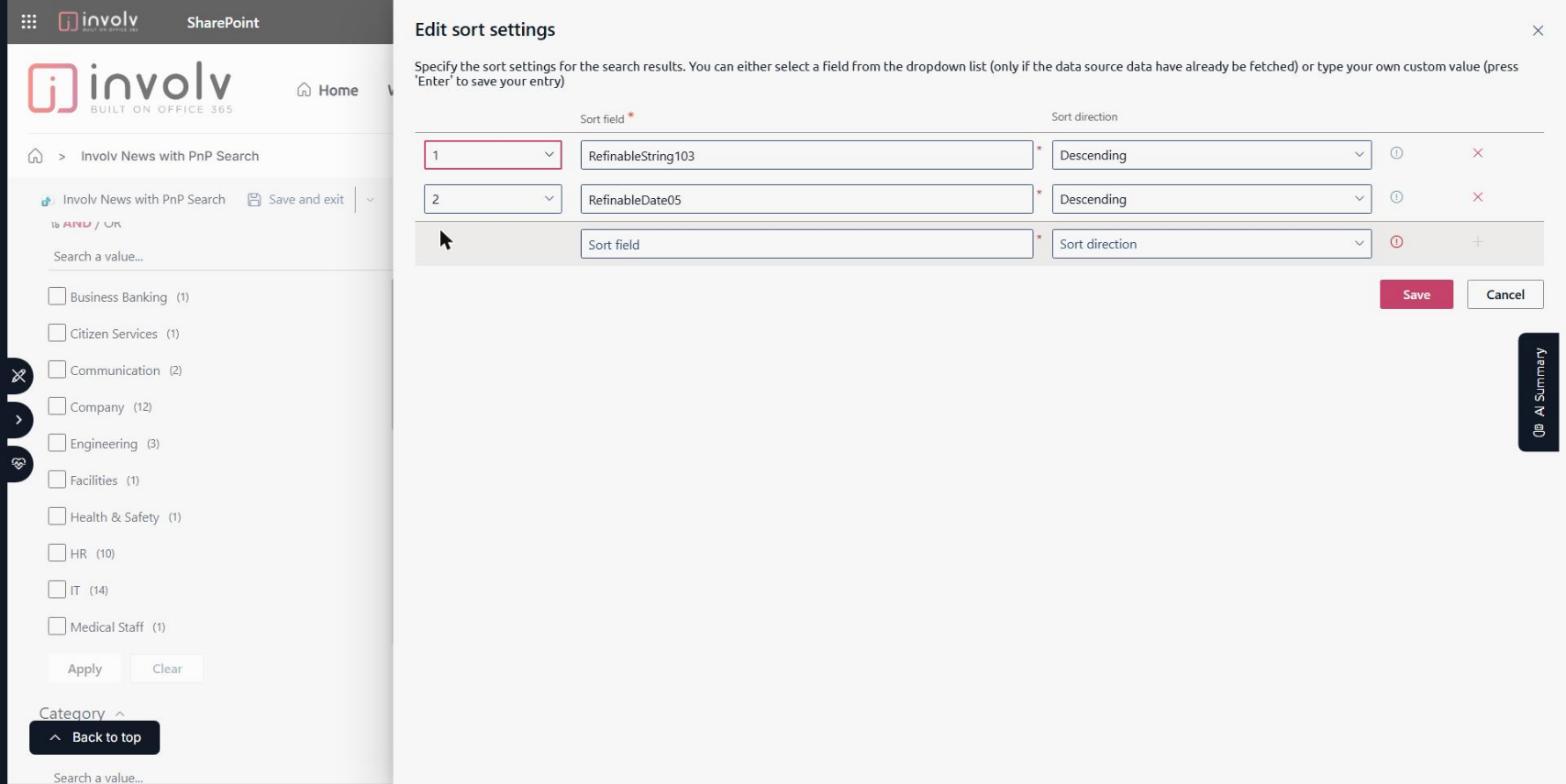
In the Edit sort settings window, type the refinable managed property that holds the Important flag in an empty row, for example RefinableString103, press Enter, set the Sort direction to Descending and click the plus icon to add the row. Then set the number in the first column of that row to 1: that number is the sort priority. Because this field is sorted first, every article marked as Important is placed above all other articles, whatever its date.
The second row is essential: without it, the articles that are not marked as Important are not sorted in a meaningful order. Use RefinableDate05, the managed property for the Involv News date, also Descending. The results are now sorted on the Important flag first, and within each group from the newest to the oldest article. If several articles are marked as Important, they also appear newest first.
Click Save to close the window.
7. Show the pin icon
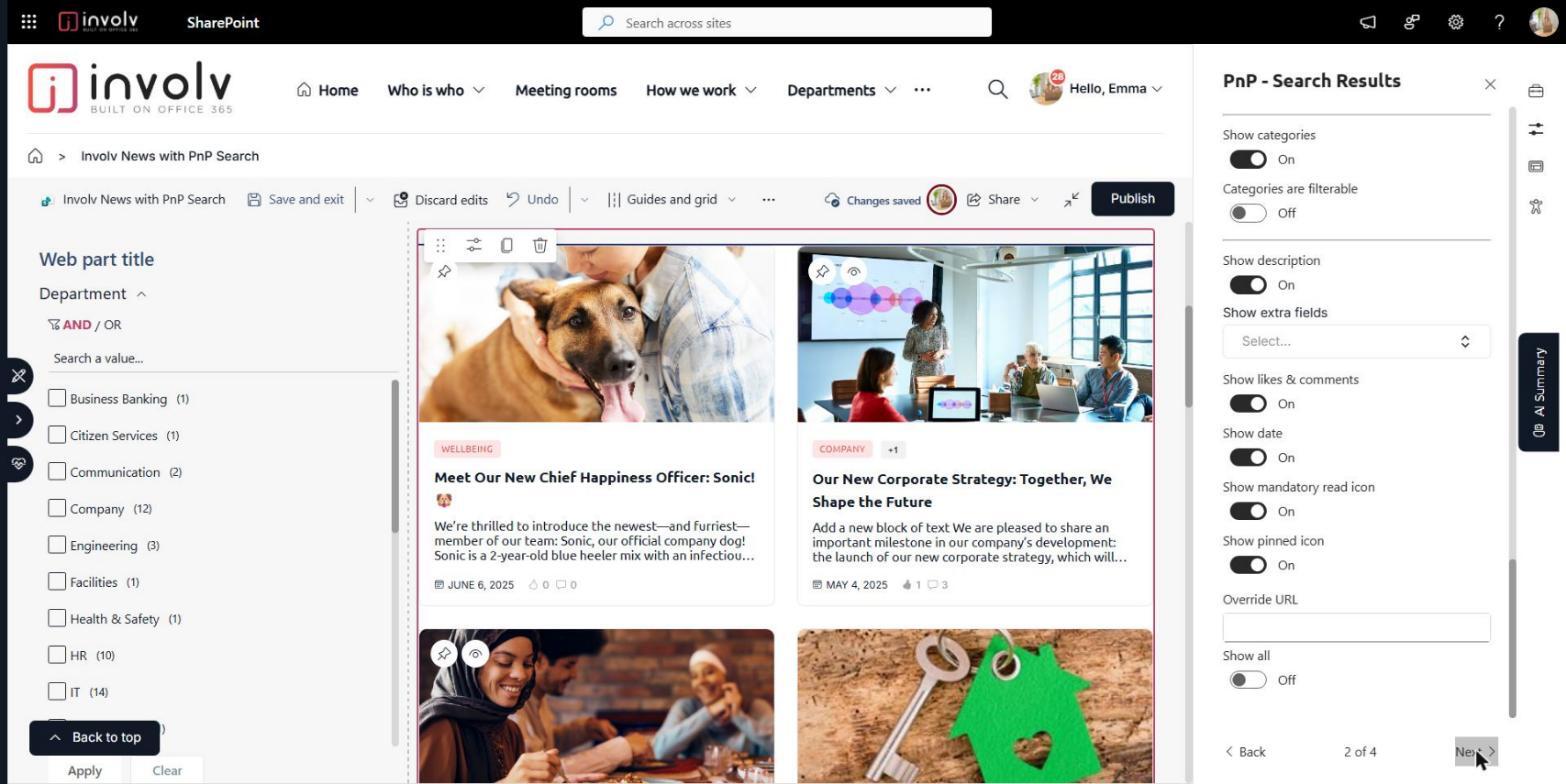
Click Next at the bottom of the property pane to go to page 2. Under the layout options, switch on Show pinned icon. Pinned articles then get a pin icon in the top left corner of their card, so readers see why an older article is shown first. Save and republish the page.
8. Result
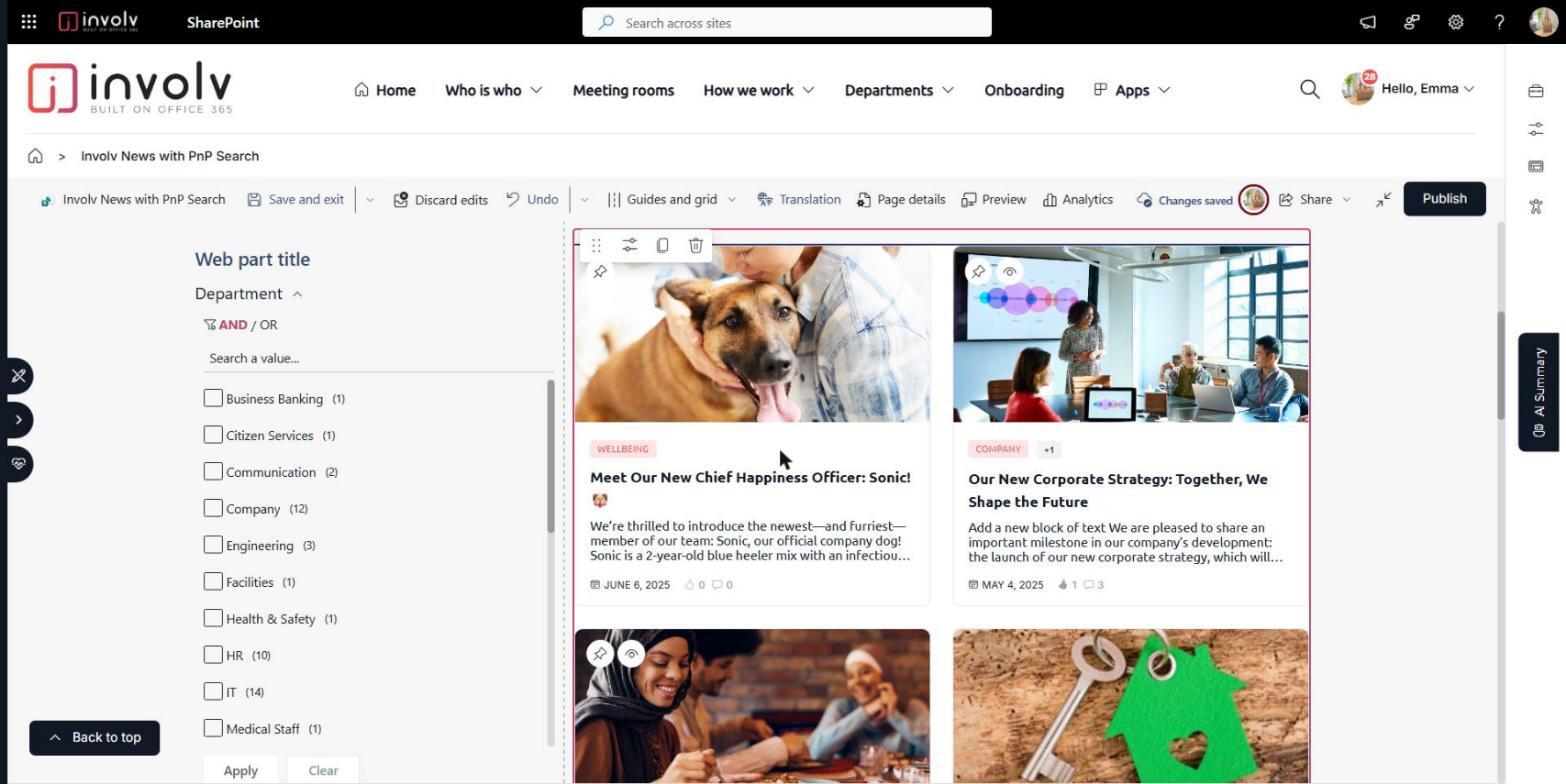
The news feed now shows important articles first, even when they are older than the other news, each with a pin icon. In the example below, articles from 2025 marked as Important stay at the top of the feed, while the more recent news follows in date order.
To unpin an article, the content creator switches off the Important option on the news article. After the search index has been updated, it returns to its normal position in the feed.
For related topics, see How to set up Involv News with PnP Search and How to use the PnP Search Results component.
Involv version 5.4.1