
1. Overview
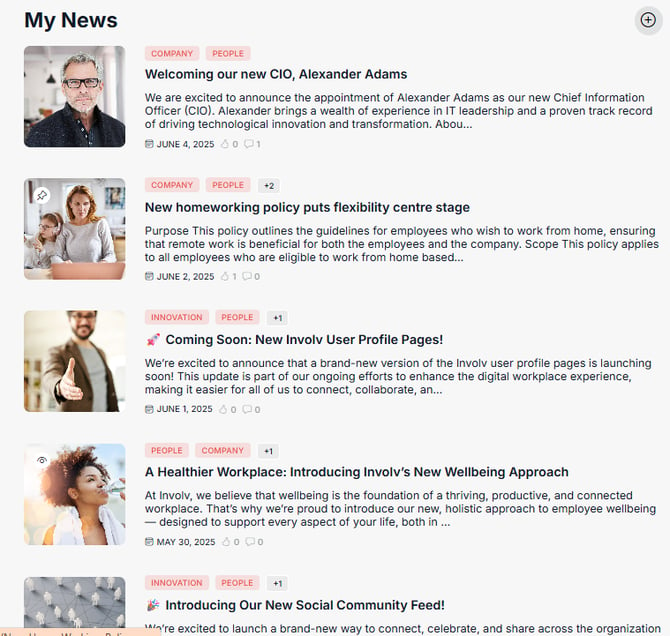
Content subscriptions let users choose which news they want to see on the intranet. A user who subscribes to the category "People" only sees news labelled "People" in every news feed with Show subscribed content enabled, for example a personal "My news" feed on the home page. Users manage their subscriptions themselves in the notification preferences, under their profile menu.
Two pieces have to be configured: the notification preferences web part defines which categories users can subscribe to, and the news feed needs Show subscribed content switched on. The search field mapping connects the two.
2. What you'll learn
- How subscriptions filter a news feed
- How to set up the news categories users can subscribe to
- How to add the search field mapping
- How to enable Show subscribed content on a news feed
- What to check when the feed shows the wrong news
3. How subscriptions filter a news feed
When Show subscribed content is enabled, Involv intranet turns the current user's subscriptions into a search query and adds it to the query of the news feed. That query uses the field names as they exist in SharePoint search, which are not always the same as on the site: InvolvContentCategory, for example, is called InvolvUserCategories in search. Involv intranet cannot detect this automatically, so you record the link once in the search field mapping. A content category without a mapping is ignored when the feed fetches subscribed content.
4. Set up the news categories
- Open the notification preferences page (for example /SitePages/Notification-Preferences.aspx) and click Edit.
- Select the web part and click the Edit properties icon (sliders) in its toolbar.
- Under Content subscription, switch Enable on. Without it, users cannot manage subscriptions and a feed has nothing to filter on.
- If subscriptions should use the same categories as notifications, turn on Use same configuration as notifications and go to section 5. Otherwise, click Manage content types and click Manage content categories on the News row.
- In the empty row, fill in:
- Field: the internal name of a site field (not a field that exists on one list only), for example InvolvContentCategory
- Label: the name users see, for example "Categorie"
- Dynamic: checked, so all values of the field appear as options
- Web URL: the relative URL of the site with the field, for example /sites/intranet
- Always Checked (optional): values every user always gets, for example "Company"
- Click + to add the row, then Save. Note the internal field name: you need it in the next section.
5. Add the search field mapping
- In the same property pane, open the General section and click Edit under Edit search field mapping.
- Enter the internal field name in Original field and its search name in Search field, for example InvolvContentCategory and InvolvUserCategories, or InvolvDepartment and Department. Click Add.
- Repeat for every field you used as a content category.
- Click Save, then Publish the page.

For a custom field, use its managed property name from the SharePoint search schema; your SharePoint administrator can look it up. The mappings are stored in the global configuration, so they apply to every news feed that uses subscribed content. You can edit or delete a mapping later in the same panel.
6. Enable Show subscribed content on the news feed
- Open the page with the news feed and click Edit.
- Open the property pane of the Involv News web part.
- Switch Show subscribed content on, click Apply and publish the page.
The feed now combines its own configuration (sources, filters, results per page) with the subscriptions of the user viewing the page. Leave this option off on feeds that should always show all news, such as a news archive.
7. Check the setup
Open your own notification preferences from the profile menu, subscribe to one news category such as "People", and open the page with the feed: it should only show news with that category. If it still shows all news or none, check the search field mapping first. The most common causes are a category field without a mapping, or a search field name that does not match the managed property. Newly tagged news appears only after SharePoint search has indexed it.
8. Result
Users control which news topics they follow in their notification preferences, and every feed with Show subscribed content enabled shows each user only the matching news. Because the mapping is stored centrally, you can add subscribed feeds to other pages without repeating the configuration.
For related topics, see How to configure alerts and content subscriptions? and How to set my personal notification settings and preferences?
Involv version 5.4.1