
Before you start, AI must be enabled for your intranet. See How do you enable AI in Involv intranet?.
1. Overview
Smart Content Intelligence is the AI-driven content governance built into Involv intranet. It scores every monitored page and checks it for common problems, so you can see at a glance which content is healthy and which needs attention — either from the central Content Overview or directly on each page.
When AI for governance reports is enabled, the Content Overview adds a set of governance signals on top of the standard content list: an overall content health score, plus checks for dead links, pages with no visitors, missing metadata, and AI-generated improvement suggestions. It also tracks content ownership and flags outdated content based on each page's review date.
Use Smart Content Intelligence to run regular content reviews, find pages that are broken or unloved, and prioritise what to fix or refresh.
Before you start, AI must be enabled for your intranet. See How do you enable AI in Involv intranet?.
and specifically the Enable AI for governance reports has to be enabled aswel:
 |
2. What you'll learn
- Where to find the Content Overview in Involv intranet
- How to read the content health score and governance signals
- How to filter and find pages that need attention
- How to act on a signal using AI suggestions
- How to improve a page directly from its health panel
- How to choose which columns are shown in the overview
- Where to configure governance behaviour, such as the maximum content age
3. Watch interactive tutorial
Watch the interactive demo below to follow each step by step how to use the content Overview tab to improve pages.
Watch the interactive demo how to check and improve the page health with on page AI sugggestions
4. Open the Content Overview
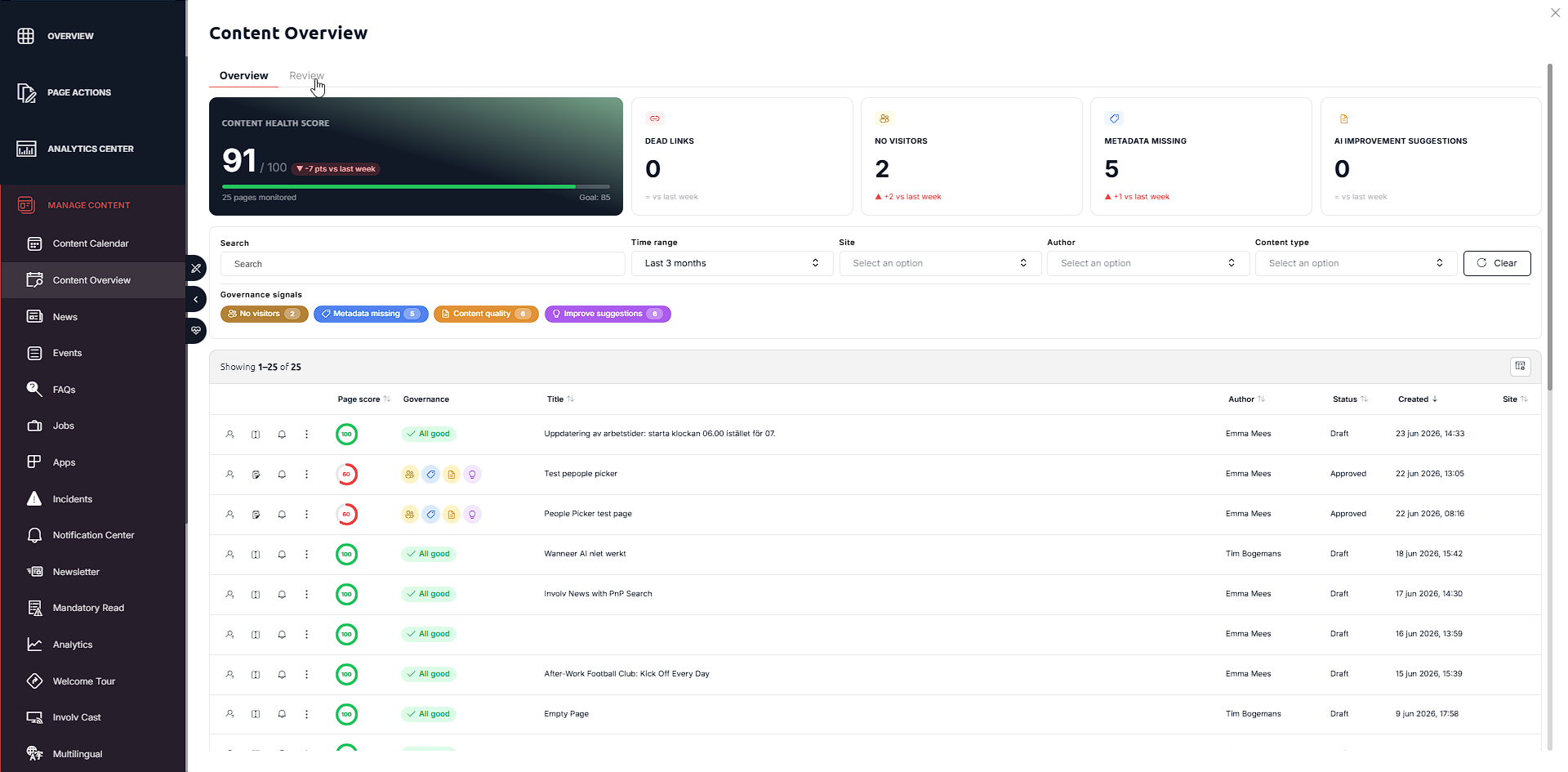
Open Involv Manager and go to Manage Content > Content Overview. The overview has two tabs: Overview, which gives you the overall picture across all monitored pages, and Review, which focuses on the pages that need attention and shows every governance signal flagged per page.
5. Read the content health score and governance signals
At the top of the overview, summary cards give you an immediate read on content health across all monitored pages:
- Content Health Score — an overall score out of 100, with the trend versus last week, the number of pages monitored, and your goal.
- Dead links — the number of pages containing broken links.
- No visitors — pages that are not being viewed.
- Metadata missing — pages missing required metadata.
- AI improvement suggestions — the number of pages for which AI has suggested improvements.
These signals are powered by the governance AI; they appear when Enable AI for governance reports is switched on.

6. Filter and find the content that needs attention
Below the cards, use the filters to narrow the list: Search, Time range, Site, Author, and Content type, with a Clear button to reset. The Governance signals area shows quick-filter chips so you can jump straight to the pages affected by a specific issue.
Each governance signal has its own colour, shown in the signal legend at the bottom of the list:
- Dead links — the page contains broken links
- Outdated content — the page is older than the configured maximum age
- No visitors — the page is below the low-traffic threshold
- Metadata missing — required metadata fields are empty
- Content quality — the page has quality issues to address
- Improve suggestions — AI has suggestions to improve the page
- Review due notification — the page is due for review
- All good — no issues detected
The content table lists each page with its Page score, Governance signals, Title, Author, Status (Draft / Approved), Created date, and Site.
7. Act on a signal with AI suggestions
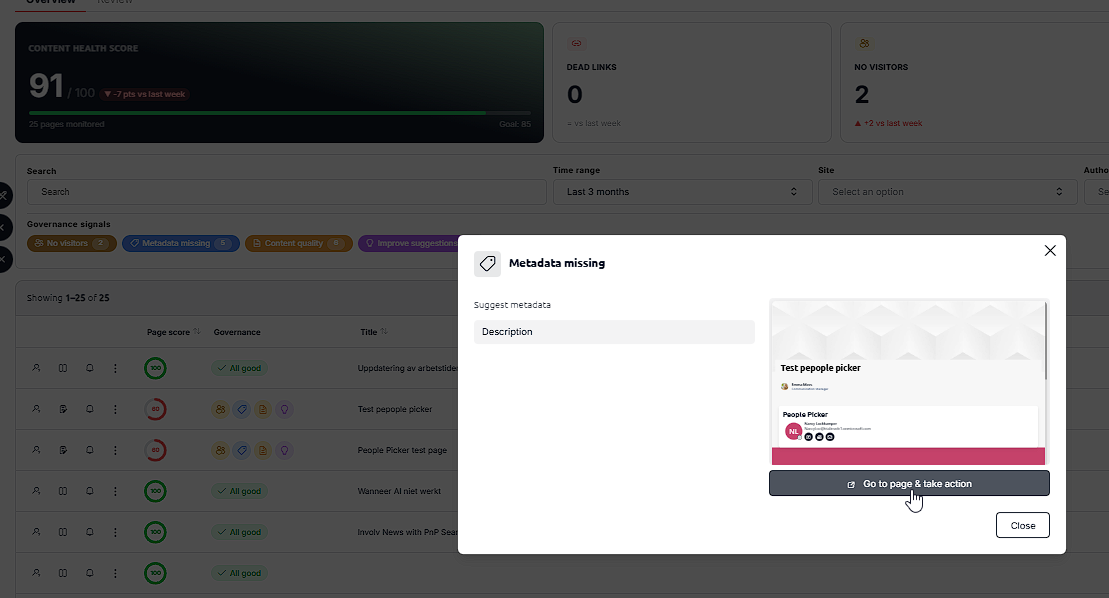
Select a governance signal on a page to open its detail panel. For a Metadata missing signal, for example, the panel shows Suggest metadata with the AI-suggested fields to complete (such as Description and Department) next to a preview of the page. From there, choose Go to page & take action to apply the fix on the page itself, or Close to return to the overview.
8. Improve a page from its health panel
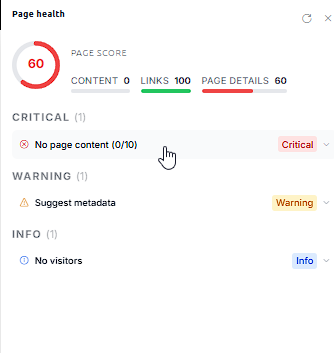
You can also check and improve a page's health directly on the page itself. Open the page health panel via its icon to see that page's content score (for example, 78/100) and the suggestions beneath it, such as dead links and text improvements. Switch on edit mode with the edit toggle, select Edit, and fix the issues. When you're done, choose Publish without notification to release the page quietly, then Re-scan to refresh the score.
9. Choose which columns are shown
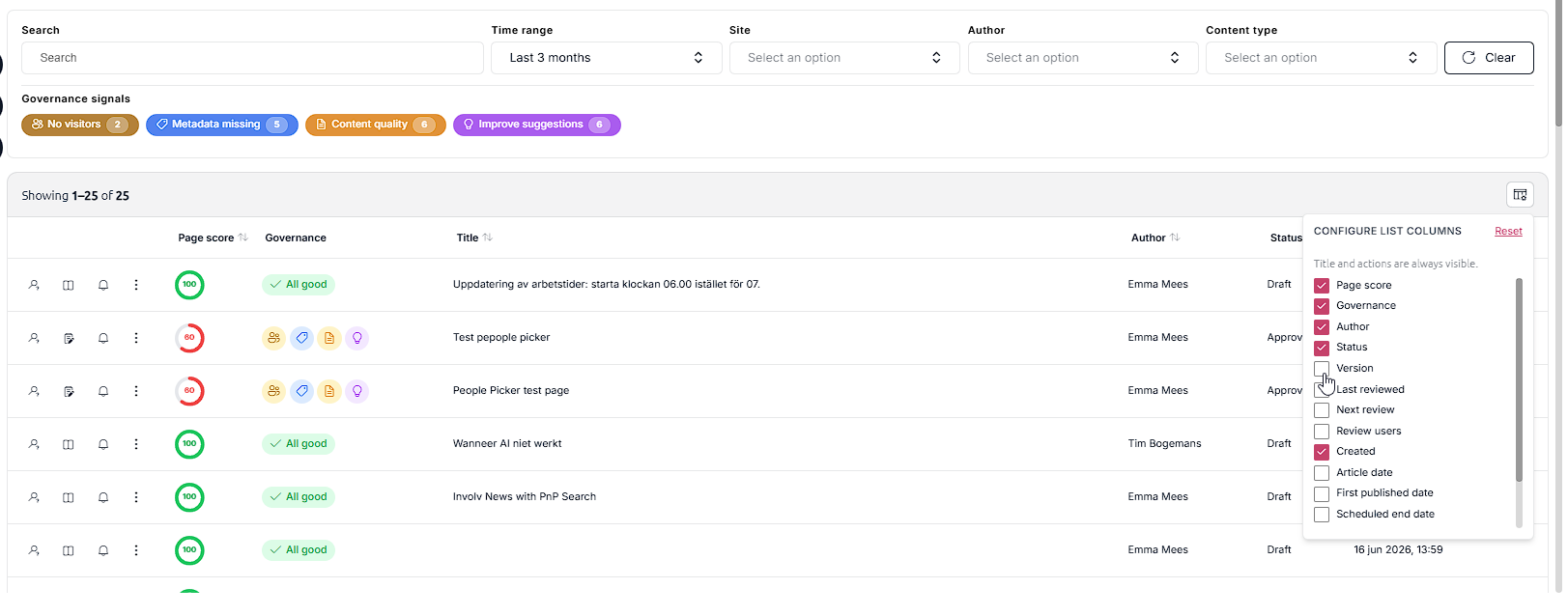
The content table is configurable: use the column settings control (top right of the table) to choose which columns are visible, so you can keep the overview focused on what matters to you.
10. Configure governance behaviour
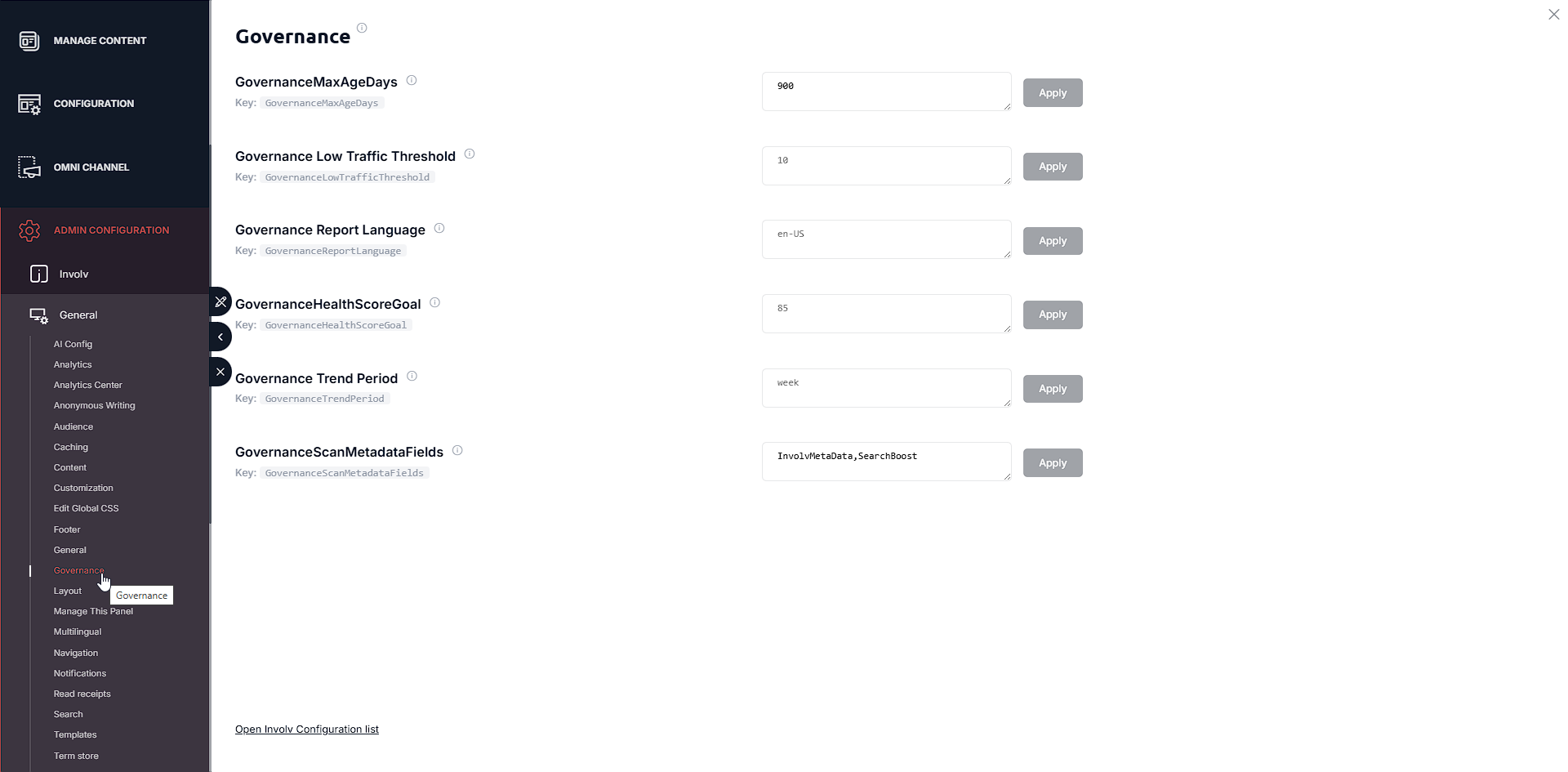
The thresholds behind the overview are set in Admin Configuration > Involv > General > Governance. Each setting has its own Apply button:
- GovernanceMaxAgeDays — the age (in days) after which a page is flagged as Outdated content (for example, 900).
- Governance Low Traffic Threshold — the visitor count below which a page is flagged as No visitors (for example, 10).
- Governance Report Language — the language used for governance reports (for example, en-US).
- GovernanceHealthScoreGoal — your target content health score (for example, 85), shown as the goal on the score card.
- Governance Trend Period — the period the trend ("vs last week") is calculated over (for example, week).
- GovernanceScanMetadataFields — the metadata fields checked for the Metadata missing signal (for example, InvolvMetaData,SearchBoost).
11. Result
After a review, you can see your overall content health at a glance, identify pages with broken links, no visitors, missing metadata, or outdated content, and act on AI improvement suggestions — keeping your intranet accurate and trustworthy.
For related topics, see How do you enable AI in Involv intranet?.
Involv version 5.4