
1. Overview
Following sites is built from two components that work as a pair. Involv Follow Site is the star button a user clicks to follow the site they are on. Involv Followed Sites is the list that shows the sites they have followed, so they can jump back to them from one place.
Both are personal: everyone builds their own list, and nobody sees anyone else's. That makes this a useful alternative to adding ever more items to the navigation. Instead of deciding centrally which sites everyone needs, you let people collect the ones they actually work with.
In practice you place the button on the site templates people visit, and the list once, on the home page or a personal page next to components such as My Tasks and My Apps.
2. What you'll learn
- How to add the Involv Follow Site button to a site
- How to position the button and give it a label
- How to add the Involv Followed Sites list to a page
- How to sort and filter that list
- Where to limit both components to a specific audience
3. Add the Involv Follow Site button
Open the page in edit mode and click the + to add a component. Search for Involv Follow Site and select it. Click the pencil icon to open the settings panel.
On the page the component is just a star. A user who clicks it follows the site they are on, and the site appears in their Followed Sites list from that moment.

4. Configure the follow button
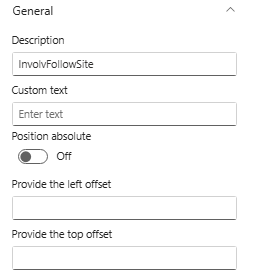
Description is the internal name of this instance of the component. It helps you recognise the component while editing the page.
Custom text adds a label next to the star. A bare star is not self-explanatory for everyone, so a short text such as Follow this site removes the guesswork the first time someone sees it.
Position absolute, with Provide the left offset and Provide the top offset, pins the button at a fixed spot on the page instead of letting it sit in the flow of the section. Use this when you want the button in the same corner on every site, so users learn where to find it. Leave it off and the button simply follows the layout of your page.
Note that this component has no Technical settings group: there is nothing to cache in a button.
5. Add the Involv Followed Sites list
Add a second component in the same way: click the +, search for Involv Followed Sites and select it. On the page it shows a heading with, beneath it, every site the user follows, each with a star in front of it.

6. Configure the list
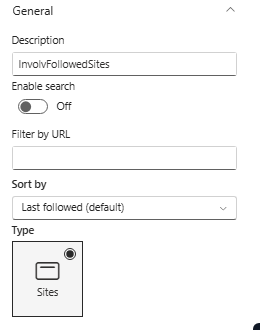
Description is the text shown above the list. Give it a name your users recognise, such as My sites, because this is what they read on the page.
Enable search adds a search field to the component. It is worth switching on where people follow many sites, and unnecessary where they follow a handful.
Filter by URL limits the list to sites whose URL matches what you enter. This lets you use the same component in different places for different parts of the intranet, for example a page that shows only followed department sites.
Sort by sets the order. The default is Last followed, so the site someone followed most recently is at the top.
Type determines what the component lists. Sites is selected.
7. Audience, caching and styling
Both components have Target Audience Settings. Switch on Enable target audience if a component should only be visible to part of the organisation, based on your Microsoft 365 groups. For the follow button this is rarely needed, since following is personal anyway.
The Followed Sites component also has Technical settings with Caching and Cache time (in minutes). Be careful with caching here: a user who has just followed a site expects to see it appear in the list, and with caching on it will not show up until the cache expires. Leave it off unless the component sits on a very busy page.
Element ID and Class lets you add a Custom CSS class or a Custom element ID for custom styling, and Show in mobile and email view under Visibility controls whether the component also appears in the mobile app and in email views.

8. Result
Users now follow a site with one click on the star, and find all their sites back in one list. Nothing has to be maintained centrally: the list fills itself with what each person actually uses.
For related topics, see How to add a component on a page? and How to add and change navigation Involv intranet?
Involv version 5.4