
1. Overview
Anonymous voting lets colleagues answer a poll without their name being linked to their vote. This is useful for sensitive topics, such as employee satisfaction or feedback on a change, where people answer more honestly when they know their vote cannot be traced back to them.
Anonymous voting is disabled by default. Anonymous votes need a dedicated folder in the InvolvPollVotes list, and that folder cannot be provisioned automatically. A site owner therefore prepares the site once: add the folder, give it its own permissions and enable anonymous list writing in the Involv Manager. After that, the Anonymous voting option is available whenever you create a poll on that site.
2. What you'll learn
- How to check whether anonymous voting is available on your site
- How to enable folders on the InvolvPollVotes list
- How to create the Anonymous folder and set its permissions
- How to enable anonymous list writing in the Involv Manager
- When to decide whether a poll should be anonymous
3. Watch the video
4. Check whether anonymous voting is available
Add the Involv Poll component to a page and click Create poll. If the Anonymous voting option is not available, the site has not been prepared yet. Follow the steps below. You only do this once per site, not for every new poll.
5. Allow folders in the InvolvPollVotes list
Poll votes are stored in the InvolvPollVotes list. Anonymous votes go into a separate folder, so the list first has to allow folders. Click the Settings gear icon in the top-right corner, open Site contents and open the InvolvPollVotes list.
In the list, click the Settings gear icon again and choose List settings. Open Advanced settings, set Make "New Folder" command available? to Yes and click OK at the bottom of the page.
6. Create the Anonymous folder
Go back to the InvolvPollVotes list. Click New, choose Folder and name it Anonymous. Use exactly this name.
7. Give the Anonymous folder its own permissions
Select the Anonymous folder, open the menu (...) and choose Manage access. Click Grant access and then Advanced to open the advanced permissions page.
Click Stop Inheriting Permissions and confirm with OK. The folder now has its own permissions, separate from the rest of the list. Select the Owners, Members and Visitors groups of your intranet site (for example Intranet Owners, Intranet Members and Intranet Visitors), click Edit User Permissions, select Full Control and click OK.
8. Enable anonymous list writing in the Involv Manager
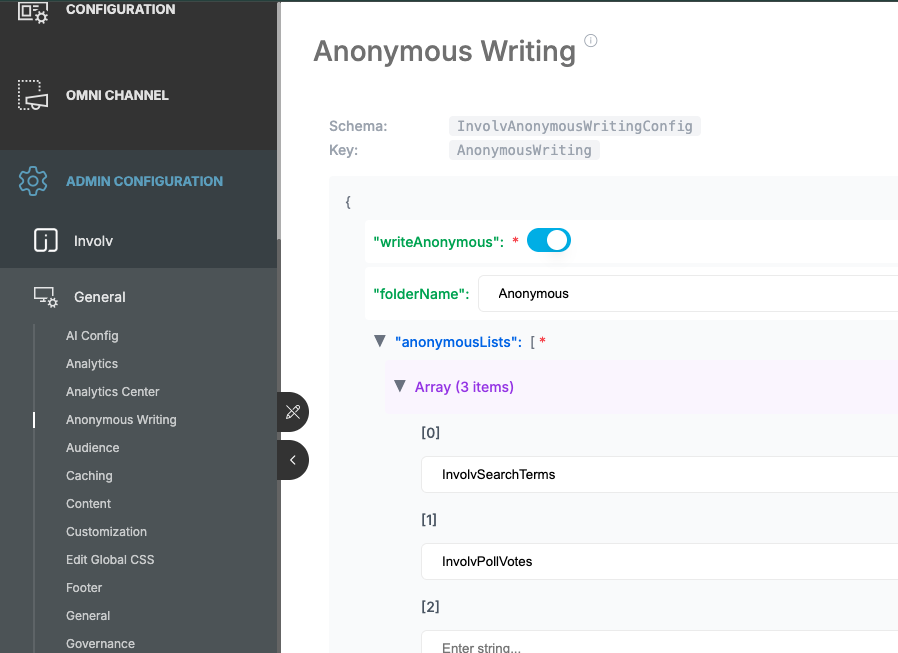
Involv intranet now needs to know that it may write anonymous entries to the InvolvPollVotes list. Open the Involv Manager and go to TO CONFIRM: location in the Involv Manager. Find the Anonymous list writing setting.
The field already contains InvolvSearchTerms. Add InvolvPollVotes after it, separated by a comma, so the value reads InvolvSearchTerms,InvolvPollVotes. Click Apply and refresh the page.
9. Decide before you create the poll
Choose whether a poll is anonymous when you create it. You cannot enable or disable anonymous voting on a poll that already exists: each vote is encrypted when it is cast, and converting the votes of an existing poll afterwards is not feasible. If you need an anonymous version of an existing poll, create a new poll with anonymous voting switched on.
10. Result
When you click Create poll, the Anonymous voting option is now available. The results of an anonymous poll stay anonymous: in the Analytics Center, user IDs are shown hashed. TO CONFIRM: anonymous votes are stored in the Anonymous folder
For related topics, see How to configure the "poll" component? and How to navigate the Involv Manager.
Involv version 5.4