
1. Overview
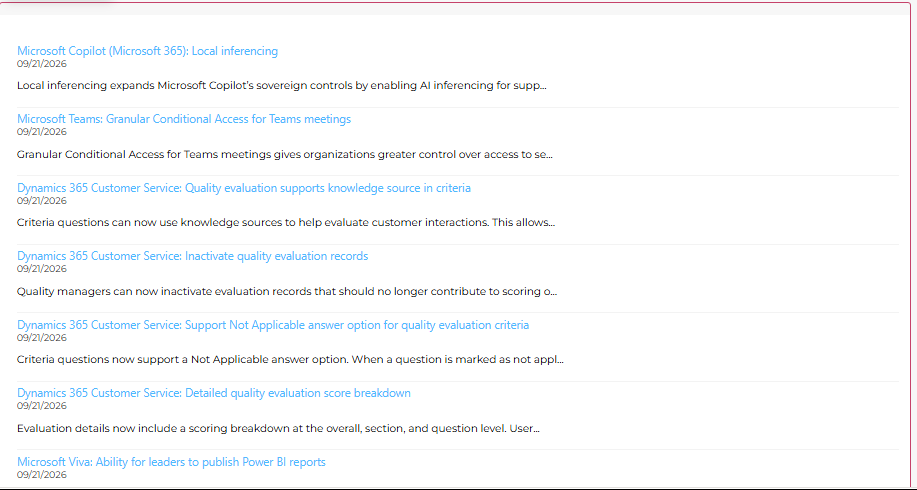
The Involv RSS Reader component shows an external RSS feed on an intranet page. Each item appears with its title as a link, the publication date and the first lines of the text, so colleagues follow a source without leaving the intranet.
Typical use is a feed that your organisation genuinely follows: the Microsoft 365 roadmap on an IT page, a sector news site on a department page, or your own blog on the home page.
One setting deserves your attention before the rest: Feed Retrieval Service. It determines whether the feed loads at all, and it is the reason most feeds that stay empty, stay empty. Section 5 explains what to do about that.
2. What you'll learn
- How to add the Involv RSS Reader component to a page
- How to point the component at a feed
- Which retrieval service to choose, and what the differences are
- What to do when the feed is blocked by CORS policy
- How to set the number of items, caching and the loading message
- How to style the feed: dates, descriptions, colours and the link to the source
3. Add the Involv RSS Reader component to a page
Open the page in edit mode and click the + to add a component. Search for Involv RSS Reader and select it. Click the pencil icon on the component toolbar to open the settings panel on the right.
Two things about this panel. It has an Apply button at the bottom: your changes only take effect once you click it. And it runs over two pages: page 1 holds the feed itself, page 2 holds the styling. Use Next and Back at the bottom to move between them.
4. Point the component at a feed
In Feed Settings, paste the address of the feed into Feed Url. This is the RSS or Atom address of the source, not the address of the website itself. Most sites publish it on their own page, often behind an RSS icon or under a link named feed.
Feed Retrieval Service determines how the component fetches that feed, and there are three options:
- Direct request — the browser fetches the feed itself. The simplest route, and the one that fails most often, because many sites do not allow another website to read their feed directly.
- Feed2Json.org — the feed is fetched through an external conversion service. Selecting it reveals a Feed Service Url field. The default address of that service is explicitly not intended for production use; for production you host the service yourself.
- Rss2Json.com — the same principle through a different service. Selecting it reveals a Feed Service Api Key field. The key is optional, but the free service has limits on how often a feed can be requested.
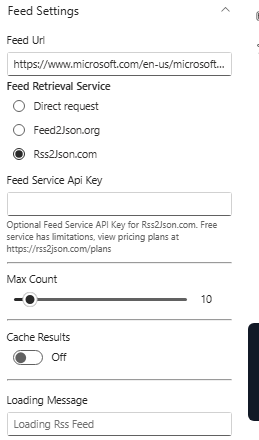
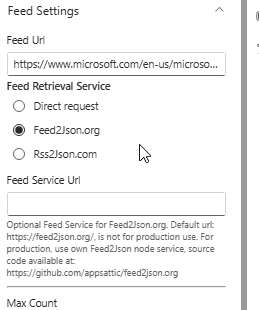
Keep in mind what these two services do: the address of your feed goes to an external party, which fetches it and passes it back. For public news sources that is no problem. For a feed that is not meant for the outside world, it is worth thinking about, and hosting the service yourself is then the better route.
5. When the feed does not load
If the component shows an error instead of items, it will usually look like this:

This is not a fault in the component. The source site simply does not allow another website to fetch its feed directly, and the browser blocks the request. It is exactly what Direct request runs into.
The fix is to switch Feed Retrieval Service to Feed2Json.org or Rss2Json.com and click Apply. The feed is then fetched by a service instead of by the browser, and the restriction no longer applies.
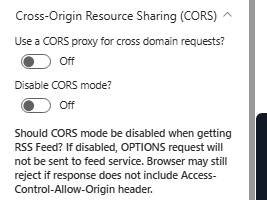
Does the feed still refuse to load, the Cross-Origin Resource Sharing (CORS) group holds two more options. Use a CORS proxy for cross domain requests? routes the request through a proxy. Disable CORS mode? stops the component sending an OPTIONS request to the feed service, though the browser can still refuse the response when it does not include an Access-Control-Allow-Origin header. Treat these two as a last resort, after the retrieval service.
6. Set the number of items, caching and the loading message
Max Count sets how many items the component shows. Keep it modest on a page that carries more than this component alone.
Cache Results keeps the retrieved feed for a while instead of fetching it again on every visit. This is one of the few components where caching is genuinely useful: an external feed rarely changes by the minute, and every fetch is a call to someone else's server, or to a service with a request limit.
Loading Message is the text shown while the feed is being fetched. The default is Loading Rss Feed. Something in your users' own language reads better than a technical term they have to guess at.
7. Style how the feed looks
Click Next at the bottom of the panel for the second page, Style Feed Results. Everything here is about presentation.
Results Layout offers Default and Custom. Default is the standard list of items, and it is what most pages need.
Pick Custom and the layout options are replaced by two fields for your own template: a code field with a {} button that opens a code editor, and an External Template Url where you point at your own HTML file. Use this when the feed has to follow a specific design, and keep in mind that you maintain that template yourself. Everything described below about dates, descriptions and colours belongs to the default layout; in a custom template you handle it in your own code.
Show publication date and Show description determine whether each item carries its date and a piece of its text. Description Characters limit caps how long that piece is. The default is 100 characters, which is about one line: enough to judge whether an item is worth clicking, short enough to keep the list scannable.
Date Format deserves a second look. The default is MM/DD/YYYY, the American convention. For a European audience, set it to DD/MM/YYYY, otherwise a feed item from 9 December reads as 12 September and nobody notices until it matters.
Link Target sets where an item opens. _blank opens it in a new tab and keeps your intranet page open behind it.
Feed View All link and Feed View All link label add a link under the feed to the source itself, for example to the full news page of the site you are showing. The label is the text of that link, View All by default.
Title Color and Background Color set the colour of the item titles and the background behind the feed. The default title colour is a light blue that has nothing to do with your house style, so this is worth two minutes if the component sits on a branded page.
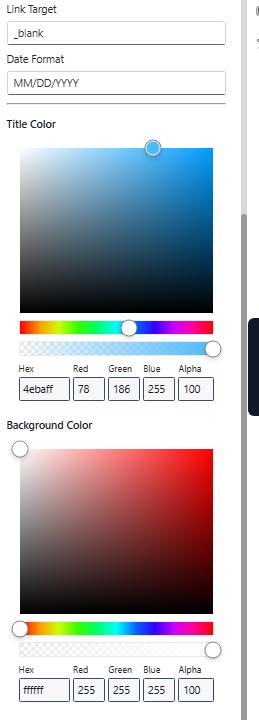
Click Apply when you are done here as well.
8. Audience, styling and mobile visibility
Under Target Audience Settings, switch on Enable target audience if the component should only be visible to part of the organisation, based on your Microsoft 365 groups. Useful when a feed only matters to one department but the page is shared.
Element ID and Class lets you add a Custom CSS class or a Custom element ID for custom styling, and Show in mobile and email view under Visibility controls whether the component also appears in the mobile app and in email views.
9. Result
Your page now carries a live feed that keeps itself up to date, and you know where to look when a feed stays empty. Test every new feed right after adding it: whether a source loads has nothing to do with your configuration and everything to do with what that source allows.
For related topics, see How to add a component on a page? and How to change the title of a component?
Involv version 5.4