
1. Overview
The Involv Script Editor component puts your own HTML, CSS or JavaScript on an intranet page. Use it for the small things the standard components do not cover: an embed from another system, a calculation, a notice that has to look exactly a certain way.
Read section 6 before you start. This component runs whatever you paste into it, for everyone who opens the page, so it asks for a bit more care than the other components.
2. What you'll learn
- How to add the Involv Script Editor component to a page
- How to paste and save your code in the code editor
- What the title, padding and classic page context settings do
- What the difference is between what you see while editing and what visitors see
- What to watch out for in terms of security and content security policy
3. Add the component to a page
Open the page in edit mode and click the + to add a component. Search for Involv Script Editor and select it.
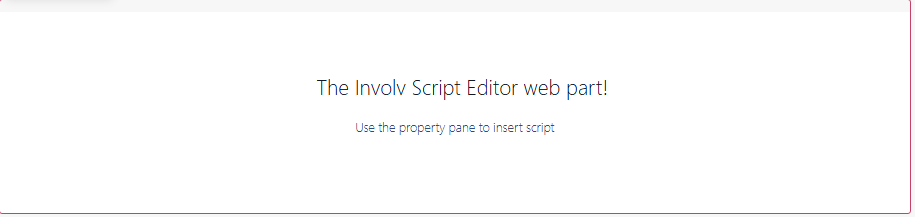
The component starts empty and says so: Use the property pane to insert script. Nothing happens until you put code in it.
4. Paste your code in the code editor
Click the pencil icon to open the settings panel, then click the {} button under the code field. A full-screen Code editor opens with line numbers and syntax colouring. Paste your code there and click Save.
Try it with this example, which shows a line of text with today's date in it. It proves the script really runs, instead of only showing static markup:
<div style="font-family:Poppins,sans-serif;border-left:3px solid #C5416A;padding:12px 16px"> <strong style="color:#111926">Welcome back</strong> <p id="involv-demo-date" style="margin:4px 0 0;color:#5b626c"></p> </div> <script> document.getElementById('involv-demo-date').textContent = "Today is " + new Date().toLocaleDateString('en-GB', {weekday:'long', day:'numeric', month:'long', year:'numeric'}); </script>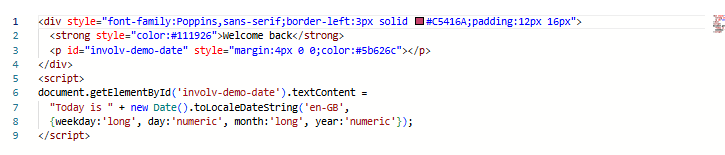
After saving, the component immediately shows the result. Publish the page and the same thing appears for your visitors.

5. Configure the title, padding and classic page context
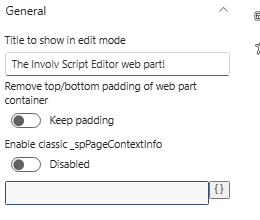
Title to show in edit mode is the name shown above the component while you are editing the page. Visitors never see it. This matters more than it sounds: a page with three script editors on it is impossible to tell apart otherwise. Give each one a name that says what it does.

Remove top/bottom padding of web part container takes the white space above and below the component away. Switch it on when your code brings its own spacing, otherwise you end up with a gap you did not ask for.
Enable classic _spPageContextInfo makes the classic SharePoint context object available. Older scripts often expect _spPageContextInfo to exist and fail without it. Leave it disabled unless a script needs it.
6. Keep it safe
Whatever you paste here runs in the browser of every colleague who opens the page, with their session. That is exactly what makes the component useful, and exactly why it deserves some discipline:
- Watch who can edit the page. Everyone who can edit a page with this component on it can change the script that runs for all its visitors. Keep those pages to a small group of editors.
- Only paste code you understand. A snippet from a forum can do more than it says on the tin. If you cannot read it, do not run it on your intranet.
- Leave a note in your code. A comment with what it does, who made it and when saves the next person a lot of guessing, and this is exactly the kind of thing nobody documents elsewhere.
- Reckon with content security policy. Microsoft is tightening what scripts are allowed to do on SharePoint pages. A script that works today can be blocked tomorrow. See Microsoft updates Content Security Policy - what does this mean for your Intranet?
Where a standard component can do the job, use the standard component. It keeps working when the platform changes underneath you.
7. Audience, styling and mobile visibility
Under Target Audience Settings, switch on Enable target audience if the component should only be visible to part of the organisation, based on your Microsoft 365 groups.
Element ID and Class lets you add a Custom CSS class or a Custom element ID, and Show in mobile and email view under Visibility controls whether the component also appears in the mobile app and in email views. Think about that last one: a script written for a wide page does not automatically work on a phone screen.
8. Result
Your page now runs your own code, with a title that only you see while editing and the result visible to your visitors. Test the page as a normal user before you leave it: as an editor you see a different view of the page than the colleagues you built it for.
For related topics, see How to add a component on a page? and Styling Impact From Recent Microsoft SharePoint Updates
Involv version 5.4