
1. Overview
The Involv Social Feed is built on Microsoft 365 Groups (previously called Unified Groups). Each community in the Social Feed is linked to a Microsoft 365 Group and its connected SharePoint site. Group privacy (public vs private) determines who can discover and join communities.
This article explains how to create the required group-backed SharePoint site, configure community visibility through the Social Feed Manager, and set up the Social Feed web part for end users.
2. What you’ll learn
-
How Microsoft 365 Groups power Social Feed communities
-
How to create the required Team site (group container)
-
How to configure communities in the Social Feed Manager
-
How to configure the Social Feed web part settings
-
What users can do in the Social Feed (posts, comments, moderation)
3. Watch interactive tutorial
4. Prerequisites and concepts
Email addresses are required
The Social Feed uses Microsoft 365 user accounts, which require email addresses.
Microsoft 365 Group features
You can view Microsoft 365 Groups in Outlook under Groups. Each group includes:
-
Email
-
Files
-
Events
-
Members
SharePoint site and privacy
Creating a Microsoft 365 Group also creates a SharePoint site. Groups can be:
-
Public: everyone can join
-
Private: users must request access / be approved
This is baseline Microsoft 365 functionality and directly impacts Social Feed visibility.
5. Step 1 – Create the community container site in SharePoint
-
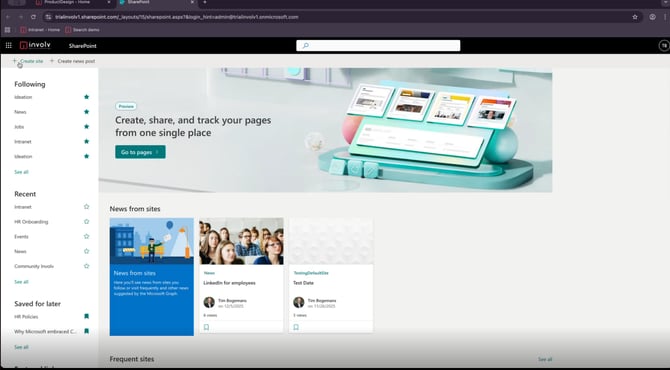
Go to SharePoint
-
Select Create site
-
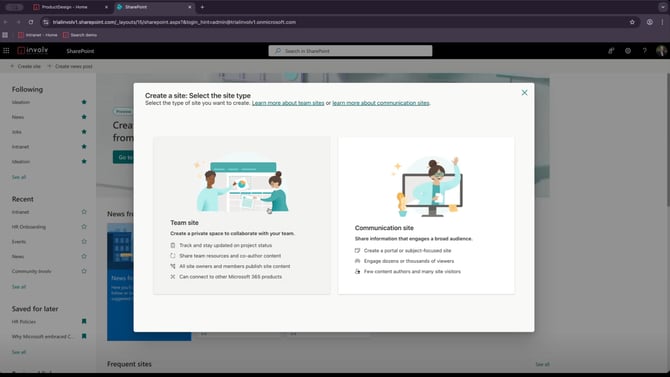
Choose Team site
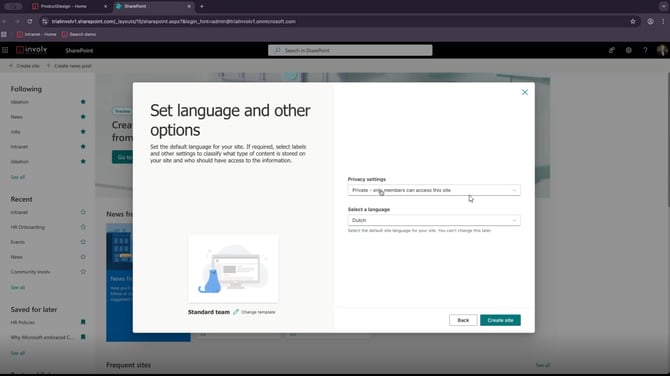
Fill in:
-
Site name
-
Description
-
Privacy settings: Public or Private
-
Decide whether users can join freely or must request permission
-
Language (example: English)
-
Optionally Add members
Important:
-
This site is mainly used as a container for the community
-
The group must be provisioned (this may take a few minutes)
6. Step 2 – Add the required Involv apps
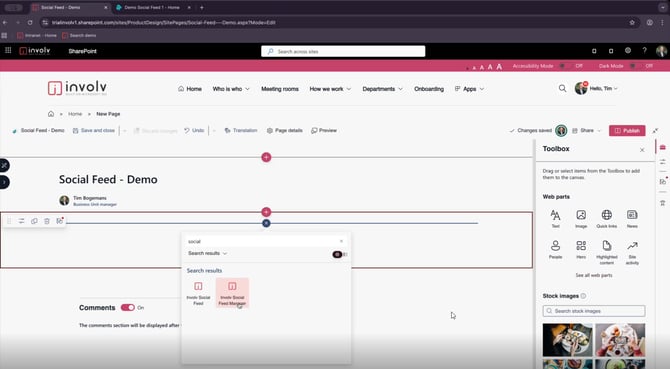
On your intranet, add:
-
Involv Social Feed Manager
-
Involv Social Feed
Start with Involv Social Feed Manager.
7. Step 3 – Configure communities in Social Feed Manager
The Social Feed Manager is empty by default.
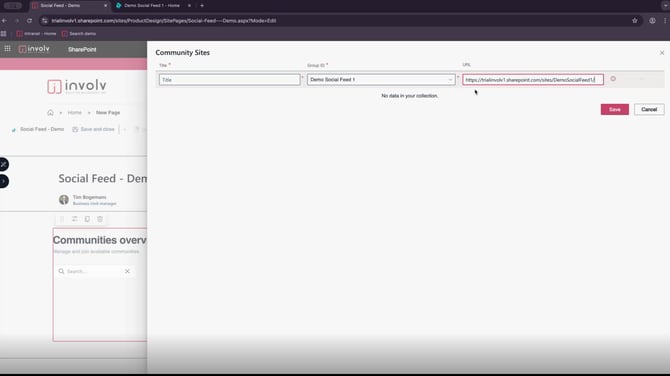
Manage Community Sites
Use this section to manage overarching communication contexts.
-
Add a custom title for the community
-
Select the Group ID by selecting the previously created Team site / group
-
Add the URL of the site (mainly used as a redirect; not functionally critical)
Result:
-
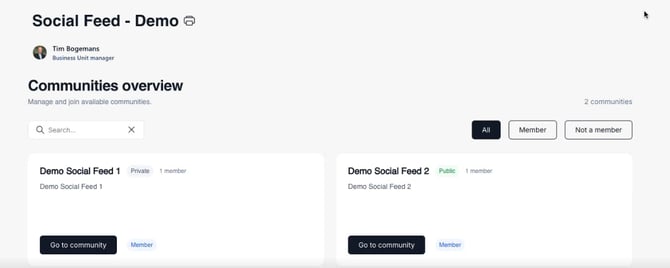
The community appears in the community overview
-
Users can see the community title and whether they are a member
-
Users can join or go to community depending on permissions
Tip
For a first-time setup of social feed communities and permissions, it is recommended to involve an Involv consultant.
Result: example of a private & a public site you created
Extra side note – membership requests and ownership
When a Microsoft 365 Group is configured as Private, users must request access to join the community.
How membership requests work
-
Membership requests are automatically sent by email
-
The email is sent to the owner(s) of the Microsoft 365 Group / SharePoint site
-
Owners can approve or reject requests directly from this notification

8. Step 4 – Add and configure the Involv Social Feed web part
-
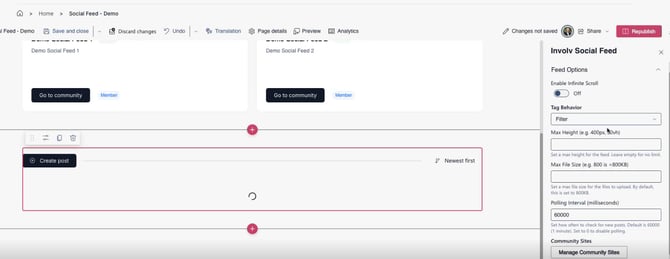
Add a new web part: Involv Social Feed
-
Open the web part configuration
- Add the items in Manage community Sites
Infinite scroll
-
Enabled: continuous scrolling inside the feed area
-
Disabled: shows a More button
-
Recommended: enable infinite scroll with a fixed height (example: 400px) to keep pages structured
Tag behavior
-
Filter: clicking a tag filters the feed to that community
-
Link: clicking a tag navigates to the community site
Filter is most commonly used.
Max file size
Set the maximum size for uploads.
Polling interval (milliseconds)
-
Default: 60000
-
Determines how frequently the feed refreshes
Community visibility
Select which community sites should be shown in this feed (must be added here to appear).
Default community
The root community where posts are created by default.
9. What users can do in the Social Feed
Users can:
-
Post a general message or ask a question
-
Upload photos
-
Like and comment on posts
-
Edit or delete their own posts
If users do not have rights on a post (e.g., someone else’s post), they cannot modify it, but they can flag it.
10. Key takeaways
-
Social Feed communities are based on Microsoft 365 Groups
-
Group privacy (public/private) determines discovery and access
-
The Team site is mainly a container for the community
-
Configure communities first in Social Feed Manager, then configure the Social Feed web part
-
Visibility requires adding communities to the web part configuration
Extra side note – securing the container site
When a Microsoft 365 Group and its connected SharePoint site are created, everyone has access to the container site by default, depending on the group’s privacy settings. Even though this site is not meant to be actively used by end users, members of the community can still see and interact with its controls.
To prevent this, it is a best practice to add the app InvolvSocialFeedControls to the container site.
Why use InvolvSocialFeedControls on the container site
-
Removes the visibility of standard SharePoint controls on the site
-
Prevents community members from changing or adding items
-
Ensures the site remains a technical container only
-
Reduces the risk of unintended configuration changes
This approach keeps the community experience fully focused on the Involv Social Feed while protecting the underlying SharePoint site from user modifications.
Involv version
Involv version 5.2