
1. Overview
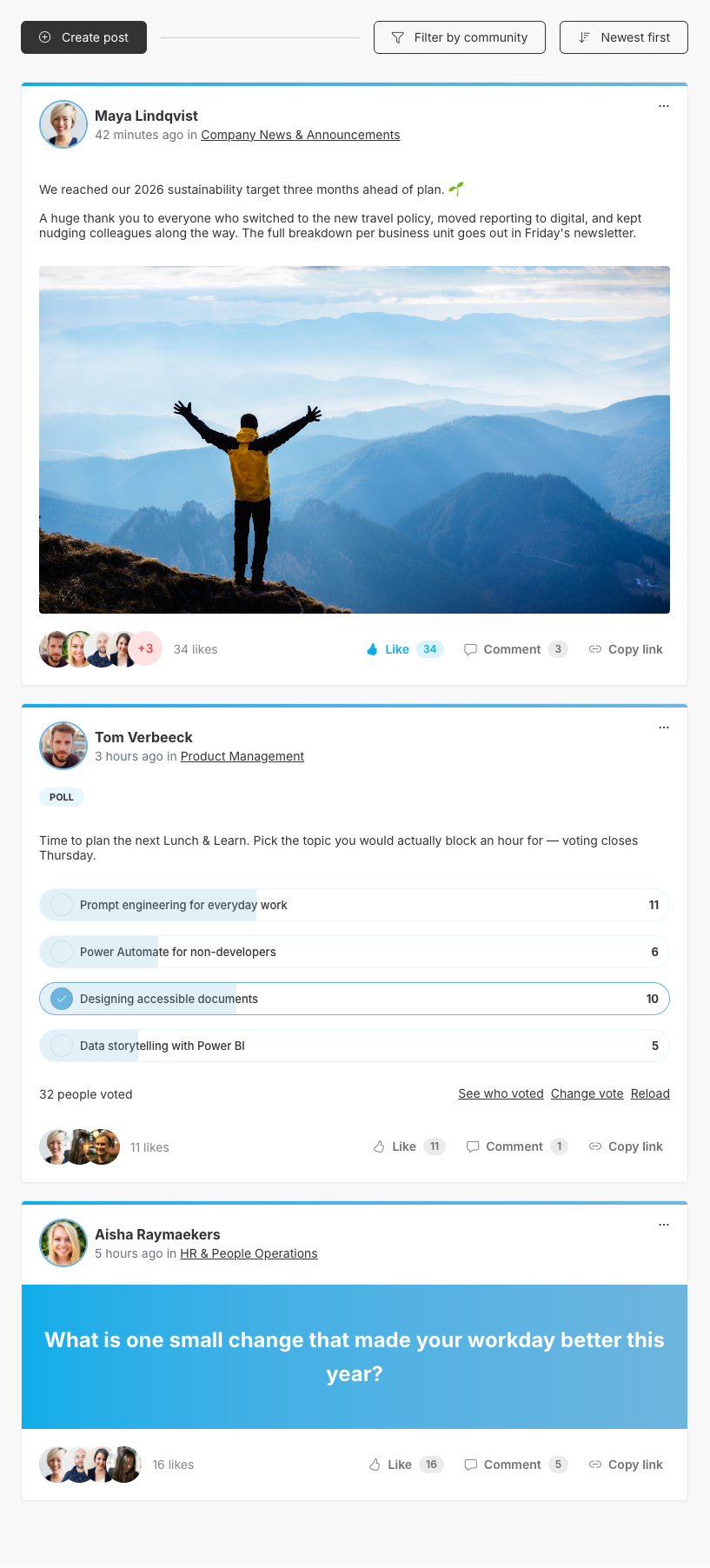
The Social Feed is where colleagues share updates, ask questions and run polls inside the communities they belong to. Every community is linked to a Microsoft 365 group, and the feed shows the posts of all the communities you are a member of in one stream.
Use the Social Feed for short, conversational updates: sharing a result, asking colleagues for input, recognising someone's work or quickly polling a team. Official news and longer articles still belong in the news section of your intranet.
2. What you'll learn
- How to read, sort and filter the posts in the feed
- How to create a post, ask a question or start a poll
- How to add images, videos and documents to a post
- How to mention colleagues, like, comment and share a link to a post
- How to edit, close, delete or report a post
3. Read, sort and filter the feed
Posts load five at a time, with the newest on top. Depending on how your intranet is set up, the next posts load automatically when you reach the bottom of the feed, or you click Get more. New posts from colleagues appear while you keep the page open, so there is no need to refresh.
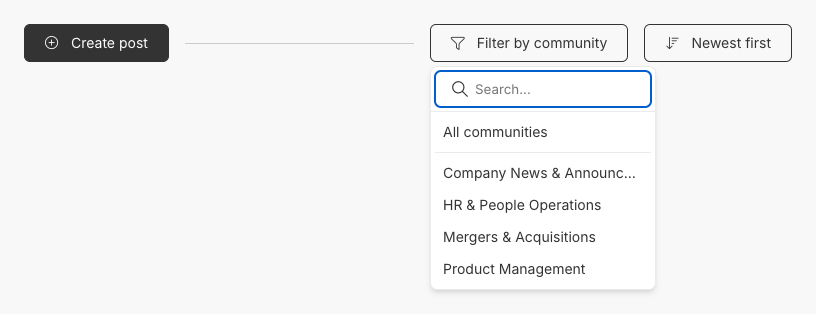
The sort button in the top right lets you switch between Newest first, Oldest first and Recently updated. Under the name of the author, a post shows how long ago it was created; hover over it to see the exact date and time. Newest first and Oldest first sort on that moment. Recently updated sorts on the last activity instead: an edit, a like or a comment brings a post back to the top, which makes it useful to catch up on conversations that are still going on. The date on the post itself does not change. When you are a member of more than one community, Filter by community narrows the feed down to a single community, and Show all takes you back to everything. Clicking the community name under a post either filters the feed on that community or opens the community site, depending on how your administrator configured the feed.
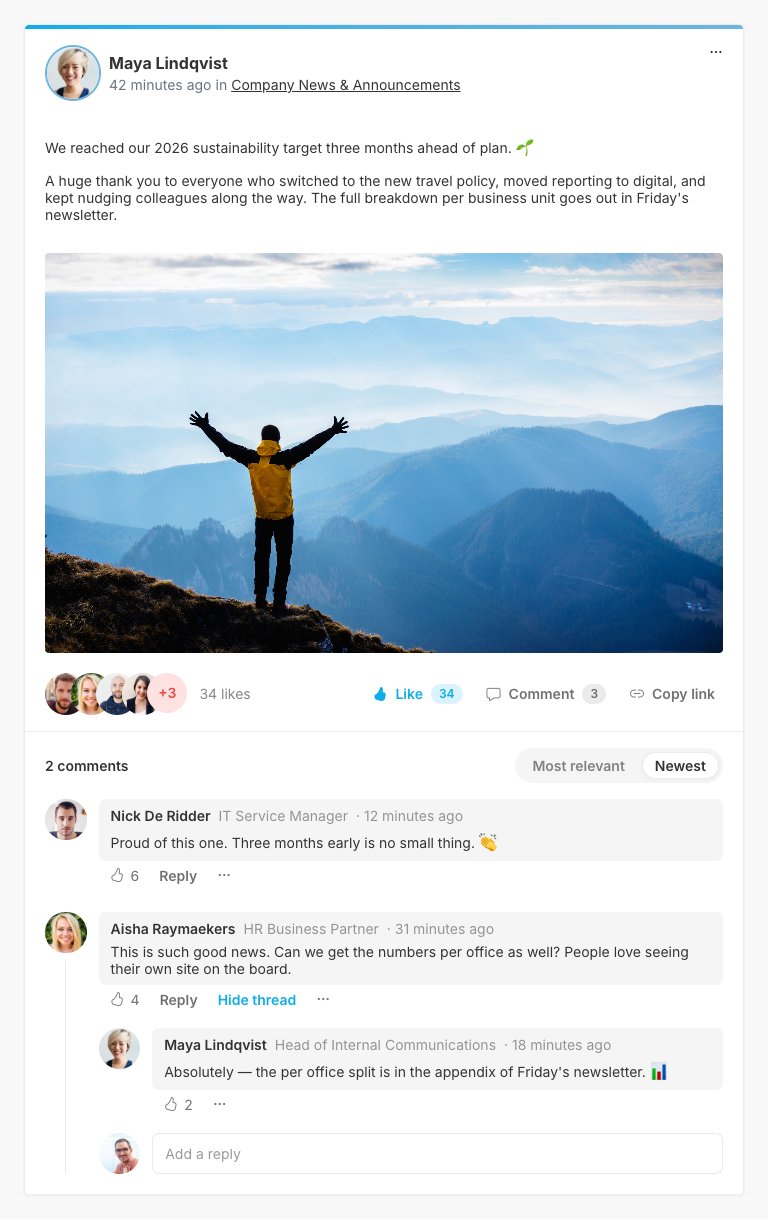
Long posts are folded after four lines; click Read more to see the full text. Images and videos open full size when you click them, documents are listed as attachments.
4. Create a post, a question or a poll
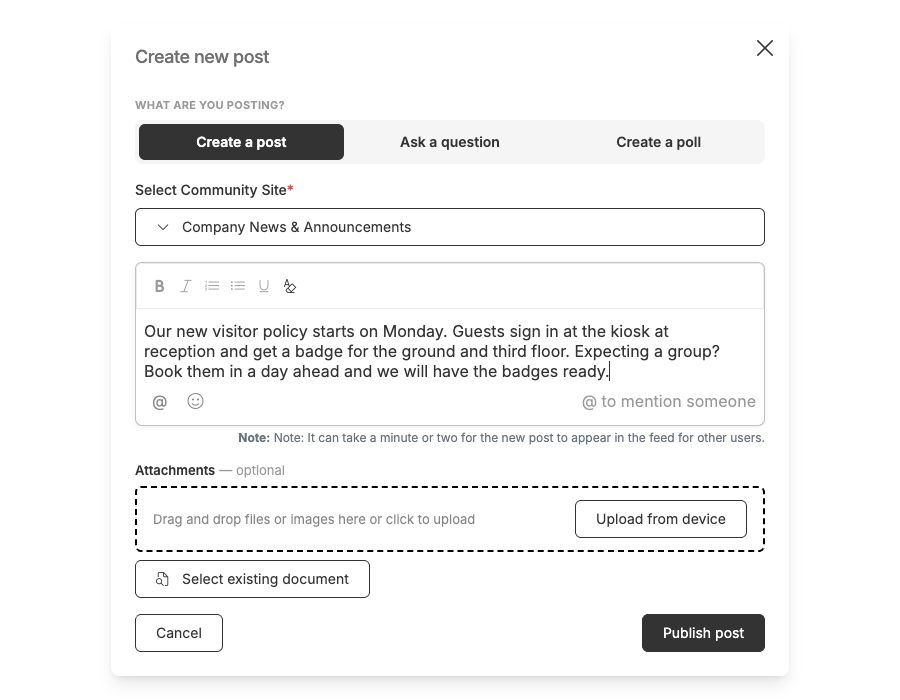
Click Create post to open the composer. At the top you choose what you are posting. Create a post is a regular message with text, images, videos and documents. Ask a question shows your text as a highlighted question banner, which makes it stand out in the feed and invites answers in the comments. Create a poll lets colleagues vote on 2 to 10 answer options; see How do you create a poll in the Social Feed of Involv intranet? for the details.
Below that, select the community your post belongs to. Only the communities in which you are allowed to post are listed, and your organisation's default community may already be selected. When the feed is filtered on a community, your post goes to that community.
Click Publish post to share it. You see your own post immediately. For colleagues it usually takes a few minutes before the post appears in their feed, because SharePoint first has to index it.
5. Add images, videos and documents
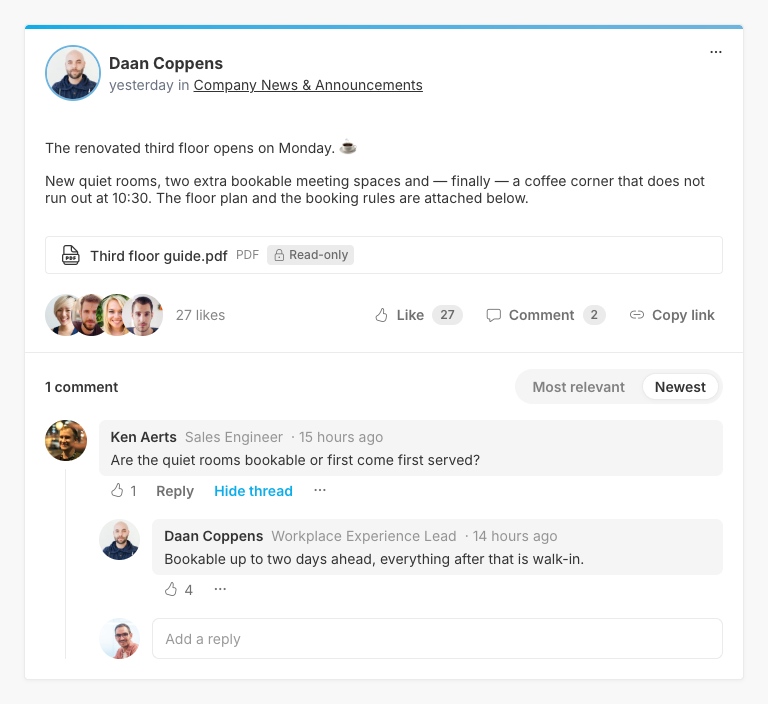
Regular posts can carry attachments. Drag files onto the composer, click Upload from device, or use Select existing document to link a document that already lives elsewhere in Microsoft 365. Linking avoids creating a second copy of the same file.
Documents can be PDF, Word, Excel, PowerPoint, CSV, text, RTF, OneNote or Visio files.
Every document you upload gets an access setting. Editable keeps the permissions of the community, so members can work in the file. Read-only locks the document so nobody can change it, which is the better choice for a final version or a policy.
Images have a maximum file size set by your administrator. If an image is too large, the composer names the file it rejected. Questions and polls do not carry attachments: if you switch the post type to one of them, files you already added are removed.
6. Mention colleagues and add emoji
Type @ followed by a name in a post or a comment to mention a colleague. Select the right person from the suggestions and the mention becomes a link to their profile. The people you mention receive a notification, even when they are not a member of the community. Use the emoji button to add emoji to your text.
7. Like, comment and share a post
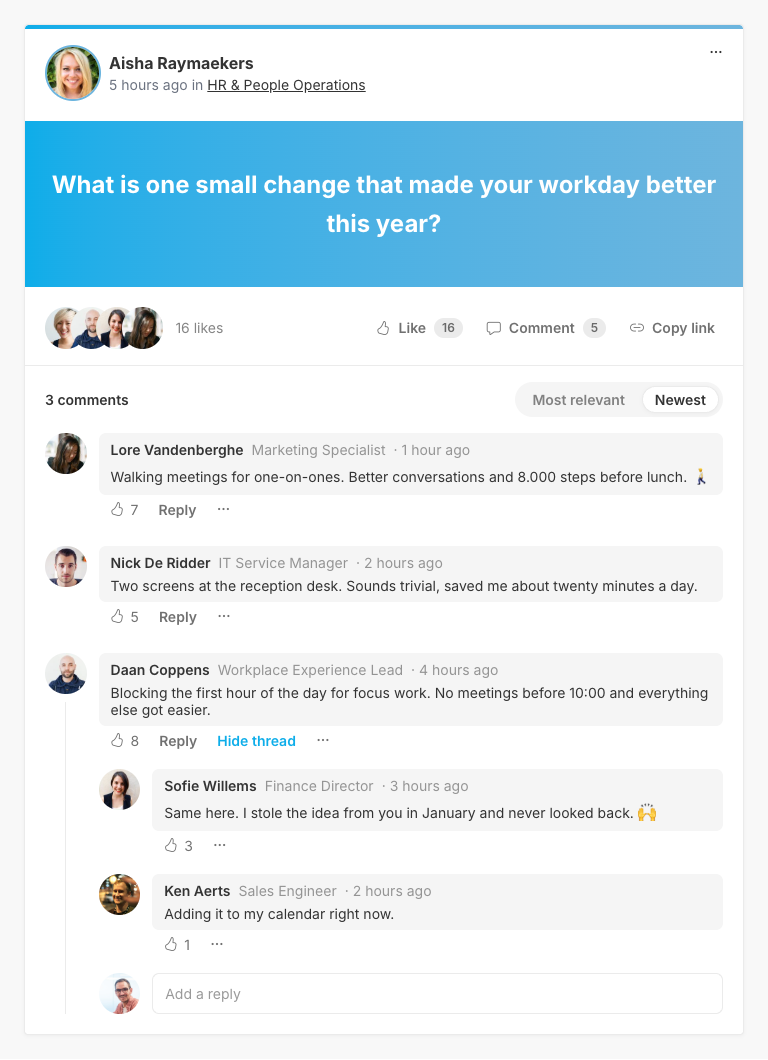
Under every post you see who liked it, the Like button, the number of comments and Copy link. Copy link puts a link to that single post on your clipboard, so you can share it in a chat or an email. Whoever opens the link sees the post on its own, with a Show the whole feed option to return to the full feed.
Comments can hold up to four images, and can be replied to, which creates a threaded conversation. You can like comments, and edit or delete the comments you wrote yourself.
If a comment cannot be posted, it stays in the box, text and images alike, with Your comment could not be posted, please try again. If one of its images fails to upload, the comment is not sent and the box shows The image could not be uploaded, please try again.
The author of a post is notified of new comments and likes. People who take part in a comment thread are notified of new replies in that thread.
8. Edit, close, delete or report a post
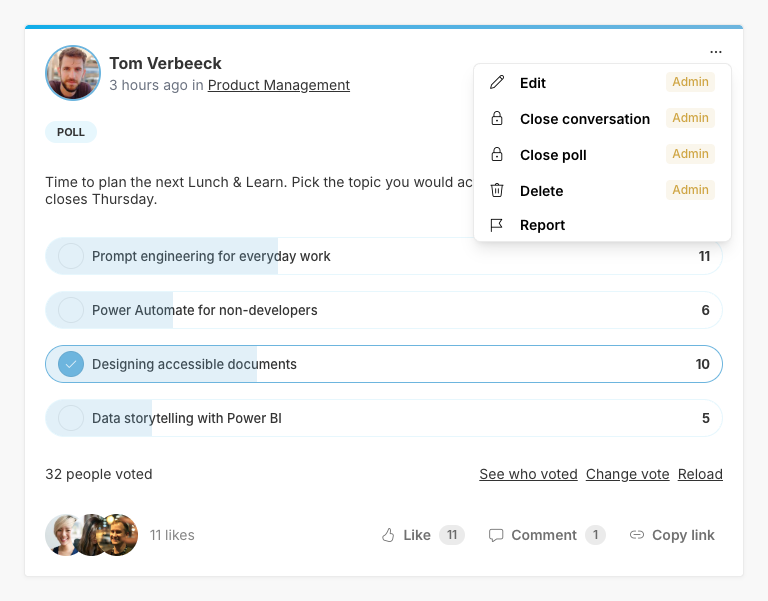
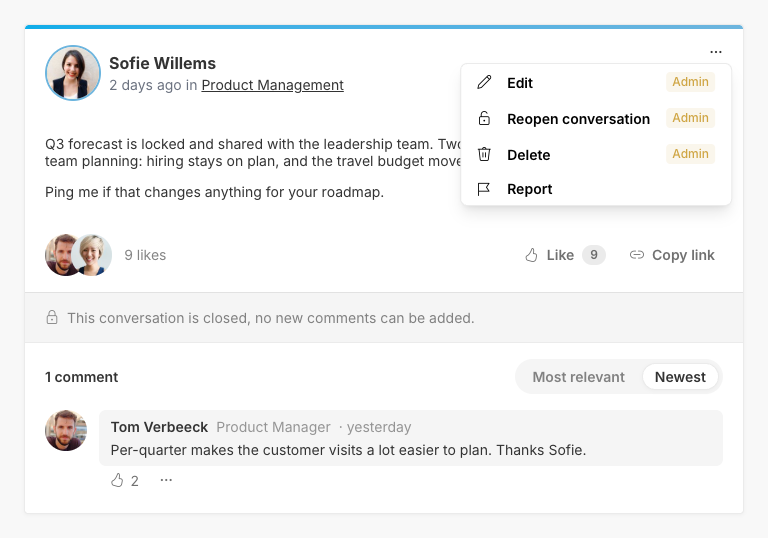
The ... menu on a post shows the actions you are allowed to take. As the author you can Edit and Delete your post. You can also Close conversation: the existing comments stay readable, but nobody can add new ones. Reopen conversation allows comments again. A conversation can also be closed outside the feed, for example from the mobile app. If you write a comment on such a post before the page is reloaded, the post switches to its closed state with Sorry, this conversation was closed. Your comment was not posted. When you edit a post, you can also change its type, for example turning a post into a question.
Anyone can Report a post or a comment. Choose Report, enter the reason and confirm. The report is stored on the intranet for administrators to review.
Depending on the configuration, administrators of a community can also edit, close or delete posts and comments of others. Those actions are marked as admin actions in the menu.
9. Result
You can now follow the conversations in your communities, share posts with files, ask questions, mention colleagues and keep the feed clean by managing or reporting posts. To join more communities, open the communities overview on your intranet; see How do you create and manage communities with the Social Feed Manager in Involv intranet?.
For related topics, see How do you use the notifications menu and How to set my personal notification settings and preferences.
Involv version 5.5