
1. Overview
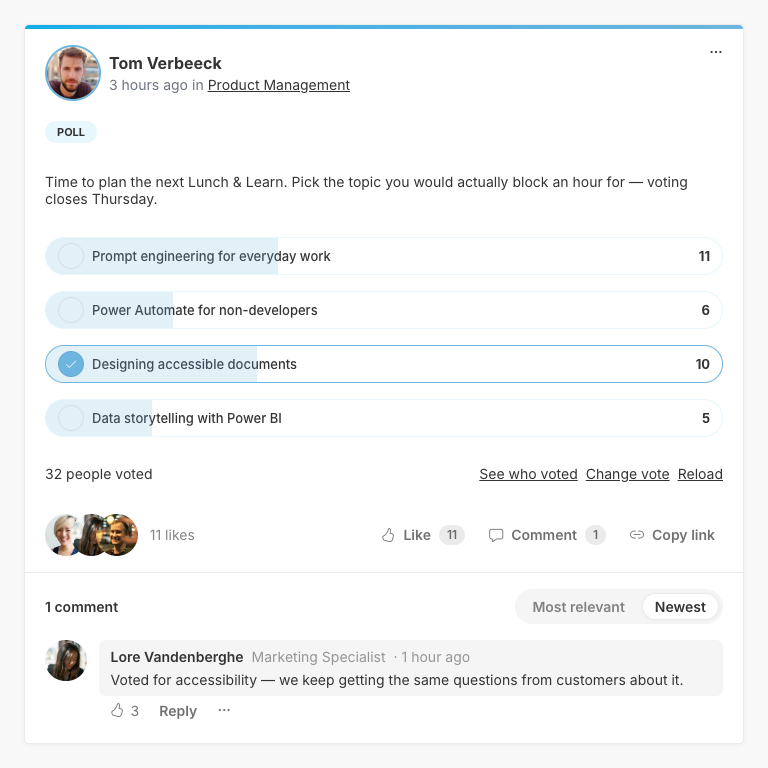
A Social Feed poll is a post with answer options that colleagues vote on. It lives in the feed like any other post: people can like it, comment on it and share it, and you can edit or delete it.
Use a feed poll for a quick, informal question to a community, such as picking a topic for the next Lunch & Learn or a date for a team event. For polls with scheduling, audience targeting or a free text "other" answer, use the Poll web part instead; see How to use the Involv Poll.
2. What you'll learn
- How to create a poll with single or multiple choice answers
- How to vote and change your vote
- How to close and reopen a poll
- What you can still edit after people have voted
3. Create a poll
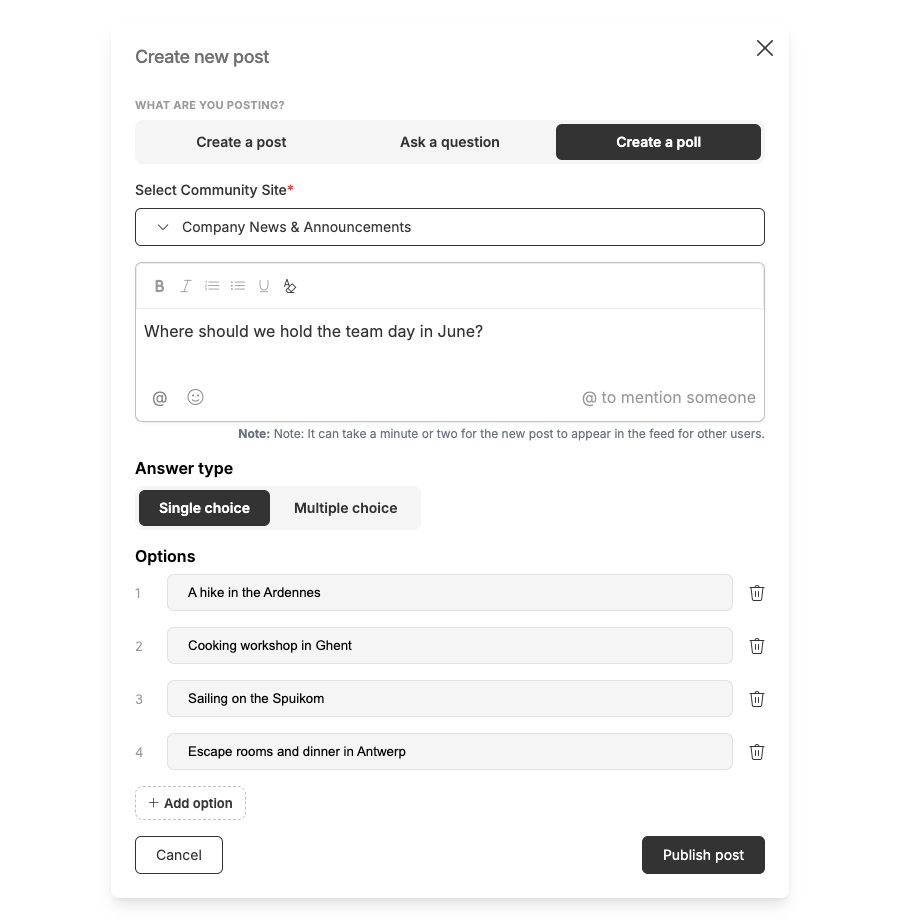
Click Create post and choose Create a poll at the top of the composer. Select the community the poll belongs to under Select Community Site, and type your question in the text field. You can mention colleagues with @ and add emoji, just like in a regular post.
Under Answer type, choose Single choice when people can pick one answer, or Multiple choice when they can pick several. Fill in the options under Options. A poll needs at least 2 and at most 10 options; use Add option to add one and the bin icon to remove one. Click Publish post to share the poll.
Polls cannot carry images or documents. It usually takes a few minutes before the poll appears in the feed of your colleagues.
If Create a poll is not available, the list that stores the votes cannot be reached on your intranet. Contact your intranet administrator.
4. Vote and follow the results
Click an option to vote, or several options in a multiple choice poll. Below the options you see how many people voted. Change vote lets you change your answer, and Reload fetches the latest results.
The author of the poll receives a notification when someone votes for the first time.
5. Close, reopen and edit a poll
The author of a poll, and community administrators when that is allowed, can close it from the ... menu with Close poll. Once closed, the votes are frozen and the results become visible to everyone. Reopen poll allows voting again.
You can edit a poll like any other post. As soon as one person has voted, the answer options and the answer type are locked and only the question can still be changed. That way, every vote keeps pointing at an option that exists.
Polls created in the Social Feed do not appear in the Polls tab of the Analytics Center, which reports on the Poll web part only.
6. Result
You can now ask a community to vote directly in the feed, follow the results and close the poll when you have your answer.
For related topics, see How do you use the Social Feed in Involv intranet? and How to use the Involv Poll.
Involv version 5.5