
1. Overview
The Involv Graph Calendar component shows a short list of upcoming appointments from Microsoft 365, straight on an intranet page. When there is nothing scheduled, the component says No upcoming events rather than showing an empty frame.
The component has no source settings: you do not point it at a site, a library or a calendar. It reads the calendar of the person visiting the page, so one page serves the whole organisation and everyone sees their own agenda.
That is also the difference with the Involv Calendar component. Involv Calendar shows a shared SharePoint library as a full calendar with a month, week and day view — the same content for everyone who can see it. Involv Graph Calendar shows a personal list of what is coming up next. Use the first for a shared planning, the second on a personal or home page next to components such as My Tasks and My Apps.

2. What you'll learn
- How to add the Involv Graph Calendar component to a page
- How to choose how many appointments are retrieved and how many are shown
- How to decide whether appointments open in a new tab
- Where to limit the component to a specific audience
- How the component differs from the Involv Calendar component
3. Add the Involv Graph Calendar component to a page
Open the page in edit mode and click the + to add a component. Search for Involv Graph Calendar and select it. Click the pencil icon on the component toolbar to open the settings panel on the right.
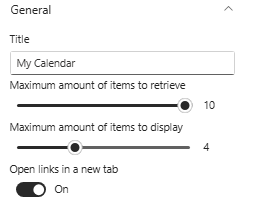
The panel is short, because there is no source to configure: General, Element ID and Class, Target Audience Settings, About and Visibility. Unlike most Involv components, this one has no Technical Settings group with caching options.
4. Set the title and how many appointments are shown
Title is the heading above the list, for example My Calendar. Because every visitor sees their own appointments, a title in the first person reads naturally here.
Maximum amount of items to retrieve sets how many appointments the component fetches from the calendar. Maximum amount of items to display sets how many of those are shown on the page. Keep the display number at or below the retrieve number, otherwise you are asking the component to show appointments it never fetched.
Keep the display number modest. This component is a glance at what is coming up next, not a replacement for Outlook — four or five appointments fill the width of a page column without pushing everything else down.
Open links in a new tab determines what happens when a user clicks an appointment. Switching this on keeps the intranet page open behind it, which is usually what you want: someone who checks their next meeting from the home page does not expect to lose the page they were on.
5. Limit the component to a specific audience
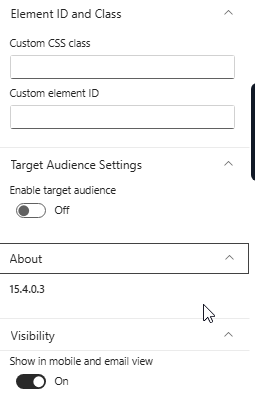
Under Target Audience Settings, switch on Enable target audience if the component should only be visible to part of the organisation. This uses the same audience targeting as the rest of Involv intranet, based on your Microsoft 365 groups.
For a personal overview this is usually left off: the component already personalises itself per user, so there is rarely a reason to hide it from anyone.
6. Apply styling and mobile visibility
Element ID and Class lets you add a Custom CSS class or a Custom element ID. Use these only when your organisation applies custom styling; they are meant for styling hooks, not for configuration.
Under Visibility, Show in mobile and email view controls whether the component also appears in the mobile app and in email views. Keep it on: a list of your next appointments is exactly what people look for on a phone.
The About group shows the version of the component, which is useful when reporting an issue to support.
7. Result
After saving and publishing the page, every user sees their own next appointments in the component, and No upcoming events when their agenda is clear. One page configuration serves everyone, and no one has to be given access to anyone else's calendar.
For related topics, see How to add a component on a page? and How do you configure the Involv Me component in Involv intranet?
Involv version 5.4