
1. Overview
The Involv Social Feed web part shows the posts of one or more communities on a single page, and is where people write new posts, questions and polls. A community is a Microsoft 365 group site, and every post is stored as a news page on that community site. The web part turns those pages into one stream.
You configure the feed after your communities exist. Creating communities, and turning an existing group site into one, is done in the Social Feed Manager; see How do you create and manage communities with the Social Feed Manager in Involv intranet?. This article covers the feed web part itself.
Before the feed can show any community, a tenant administrator has to approve the API permissions of the Social Feed. Until then, the feed shows No community access. See How do you upgrade and troubleshoot Social Feed communities in Involv intranet? for the permissions and where to approve them.
The interface of the feed is available in English, Dutch, French, German, Spanish, Italian, Polish, Portuguese and Chinese (Simplified).
The web part runs on a SharePoint page, as a Teams tab, as a Teams personal app and as a full page app. It does not need an Involv intranet site: the homepage of every community also shows the feed of that community.
2. What you'll learn
- How to add the Involv Social Feed web part to a page
- How to choose where the communities of a feed come from
- How to add communities to a feed manually
- How to configure reading options such as infinite scroll, height and tag behaviour
- How to configure posting options such as the editor, file size and mentions
- How to allow community administrators to moderate posts
3. Add the web part to a page
Edit the page where the feed should appear, add a web part and choose Involv Social Feed. Open the property pane with the pencil icon to configure it. Title is shown above the feed; leave it empty to show no title.
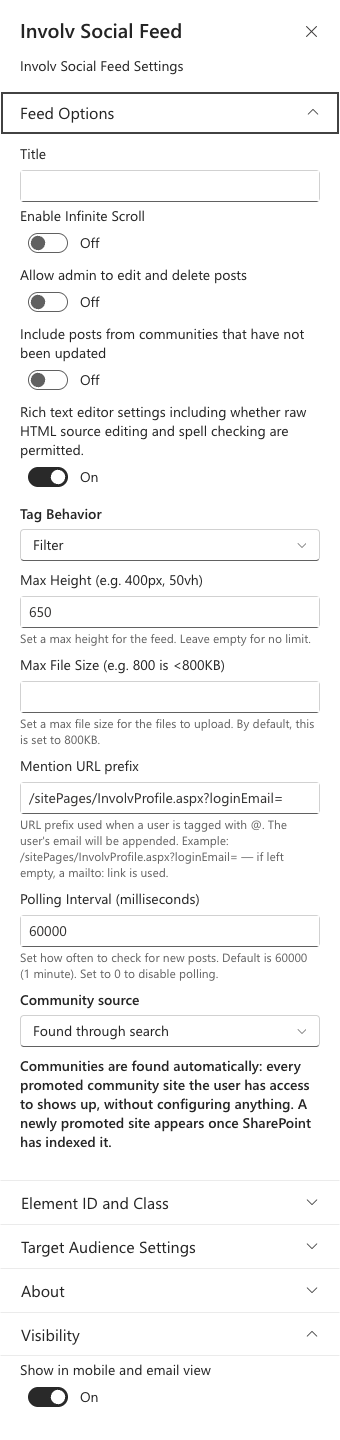
A typical intranet has one dedicated Social Feed page that shows all communities. Make a note of the address of that page: when you create or promote a community, the Social Feed Manager asks where posts should open, and this page is usually the answer.
4. Choose where the communities come from
The Community source setting decides which communities this feed shows. There are three options, each for a different situation.
Configured list is the default. The feed shows the communities you add yourself under Manage Community Sites (see the next section). Choose this when a page should show a specific selection, for example only the communities of one department.
Found through search shows every promoted community the reader has access to, without any configuration. A community that is promoted in the Social Feed Manager shows up on its own once SharePoint has indexed it. Choose this for a central feed that should automatically include new communities.
The current site shows the posts of the site the web part sits on. This is what the homepage of a community uses. Everyone who can read the site sees its posts; writing a post requires permission to add pages to the site.
With Configured list and Found through search, readers only see the communities they are a member of. Membership of the Microsoft 365 group behind a community decides that.
5. Add communities to a configured list
With Configured list selected, click Manage Community Sites and add a row per community. Title is the name the community is shown under in the feed. Tick Use the community name to show the name of the Microsoft 365 group instead, so a later rename of the community is picked up automatically.
Target group IDs is the Microsoft 365 group behind the community: pick it from the groups of your tenant. Url is the full address of the community site and is required. The address is asked for rather than looked up, because a private community can only be looked up by its members, and the person configuring the feed is often not one of them.
Redirect Link is optional: it is where the community name links to when the tag behaviour is set to Go to Site, for a community that people read somewhere else than on its own site. Tick Is Default for the community new posts are filed under by default, when the author is allowed to post there.
6. Configure reading options
Enable Infinite Scroll loads the next posts automatically when the reader reaches the bottom. When it is off, readers see a Get more button. Max Height accepts a CSS height such as 400px or 50vh and turns the list of posts into its own scroll area, which keeps a page with other content around the feed tidy. Leave it empty to let the page grow with the feed. Infinite scroll combined with a fixed height works well on a homepage.
Tag Behavior decides what happens when someone clicks the community name under a post. Filter narrows the feed down to that community and is the most common choice. Go to Site opens the community site, or its redirect link when it has one.
Polling Interval sets how often, in milliseconds, the feed checks for new posts. The default is 60000 (one minute). Set it to 0 to turn polling off.
7. Configure posting options
Rich text editor gives the post editor formatting options such as bold, italic and lists. When it is off, posts are plain text with mentions and emoji.
Max File Size is the size limit in KB for images in a post, with 800 as the default. Only images are held against this limit; videos and documents are uploaded regardless of their size, within the limits of SharePoint.
Mention URL prefix decides where an @mention links to. The email address of the mentioned person is added to the end of it, for example /sitePages/InvolvProfile.aspx?loginEmail= to link to the Involv intranet profile page. Leave it empty to turn mentions into email links.
8. Configure moderation and older posts
Allow admin to edit and delete posts is on by default. It lets a site collection administrator of a community edit, close and delete posts and comments of others. Every such action is marked as an admin action in the menu. Note that "admin" here means a site collection administrator of the community site, not an Involv intranet administrator.
Include posts from communities that have not been updated is off by default. Turn it on while your tenant still has communities that were set up with an earlier version of the Social Feed and have not been promoted again since. See How do you upgrade and troubleshoot Social Feed communities in Involv intranet?.
The web part also carries the standard Involv intranet settings: CSS targeting, Audience and About with the version of the solution.
9. Result
Your page now shows a feed of the right communities, with reading, posting and moderation set up the way your organisation wants. Members can post, ask questions and run polls, and only see the communities they belong to.
For how members use the feed, see How do you use the Social Feed in Involv intranet? and How do you create a poll in the Social Feed of Involv intranet?.
For related topics, see How do you create and manage communities with the Social Feed Manager in Involv intranet? and How to configure SharePoint permissions on Involv intranet sites.
Involv version 5.5